Best Screen Recording Software for Mac in 2026: 8 Picks
Compare 8 Mac screen recorders for polished demos, multi-source tutorials, streaming, transcript editing, training, async sharing, and free capture.
Start with Screen Studio when you want a polished product demo with relatively little manual editing. Continue with ScreenSage Pro when you need multi-source recording, transcript-guided editing, 2D or 3D camera motion, screen-and-camera layouts, and deeper post-recording control. For free recording and live production, look at OBS Studio.
No single app fits every workflow. Camtasia is stronger for structured training. For text-led editing, ScreenSage Pro keeps transcript tools inside a visual product-demo workflow, while Descript is the more transcript-first option. Loom is faster for async sharing. The right recorder is the one that finishes your specific job, not the one with the longest feature list.
The 8 best Mac screen recorders at a glance
Three standout starting points
- Screen Studio — polished product demos and tutorials with minimal editing. Subscription.
- ScreenSage Pro — multi-source tutorials, transcript-guided editing, editable attention guidance, and 3D product-demo motion. One-time license.
- OBS Studio — configurable recording, scenes, and live streaming at no cost. Free and open source.
Five specialized choices
- Camtasia — long-form training, courses, annotations, and full timeline editing. Subscription.
- Descript — narrated videos that are easier to edit as text. Free tier and subscriptions.
- Loom — async team updates, instant links, comments, and viewer activity. Free tier and subscriptions.
- CleanShot X — screenshot-first Mac capture with fast video and GIF recording. One-time license with optional update renewal.
- macOS Screenshot and QuickTime Player — zero-install basic capture. Included with macOS.
How did we compare these Mac screen recorders?
We compared the time and effort required to reach a usable final video, not recording quality alone. Almost every serious recorder can capture a sharp screen. The meaningful differences appear after you stop recording.
We used six decision points:
- Capture range: full display, window, region, camera, microphone, system audio, and mobile-device support.
- Time to finish: how much work sits between stopping the recording and sharing or exporting it.
- Attention guidance: automatic zoom, cursor treatment, callouts, captions, and layout changes.
- Correction control: whether you can fix timing, framing, audio, and visual decisions without re-recording.
- Delivery: local export, cloud links, comments, streaming, and team workflows.
- Cost model: free, one-time purchase, optional update renewal, or recurring subscription.
This is an editorial fit guide based on official documentation. We did not claim that all eight apps were tested on one Mac with the same project, so we avoid unsupported performance scores. Prices below are USD before tax and can change; use the linked official page as the final purchase check.
Screen Studio — polished demos with less editing
Screen Studio is the strongest overall recommendation for a creator who wants a raw Mac recording to look intentional with very little setup. It automatically adds zooms around actions, smooths cursor movement, adjusts cursor size, styles the canvas, and adapts horizontal or vertical exports.
Its current product page also documents webcam, microphone, system audio, local transcription, shareable links, iPhone and iPad recording over USB, device-frame customization, and video or GIF export up to 4K at 60 fps. That breadth matters because several older comparison pages still describe Screen Studio as desktop-only or say it lacks device frames. Those descriptions are now stale.
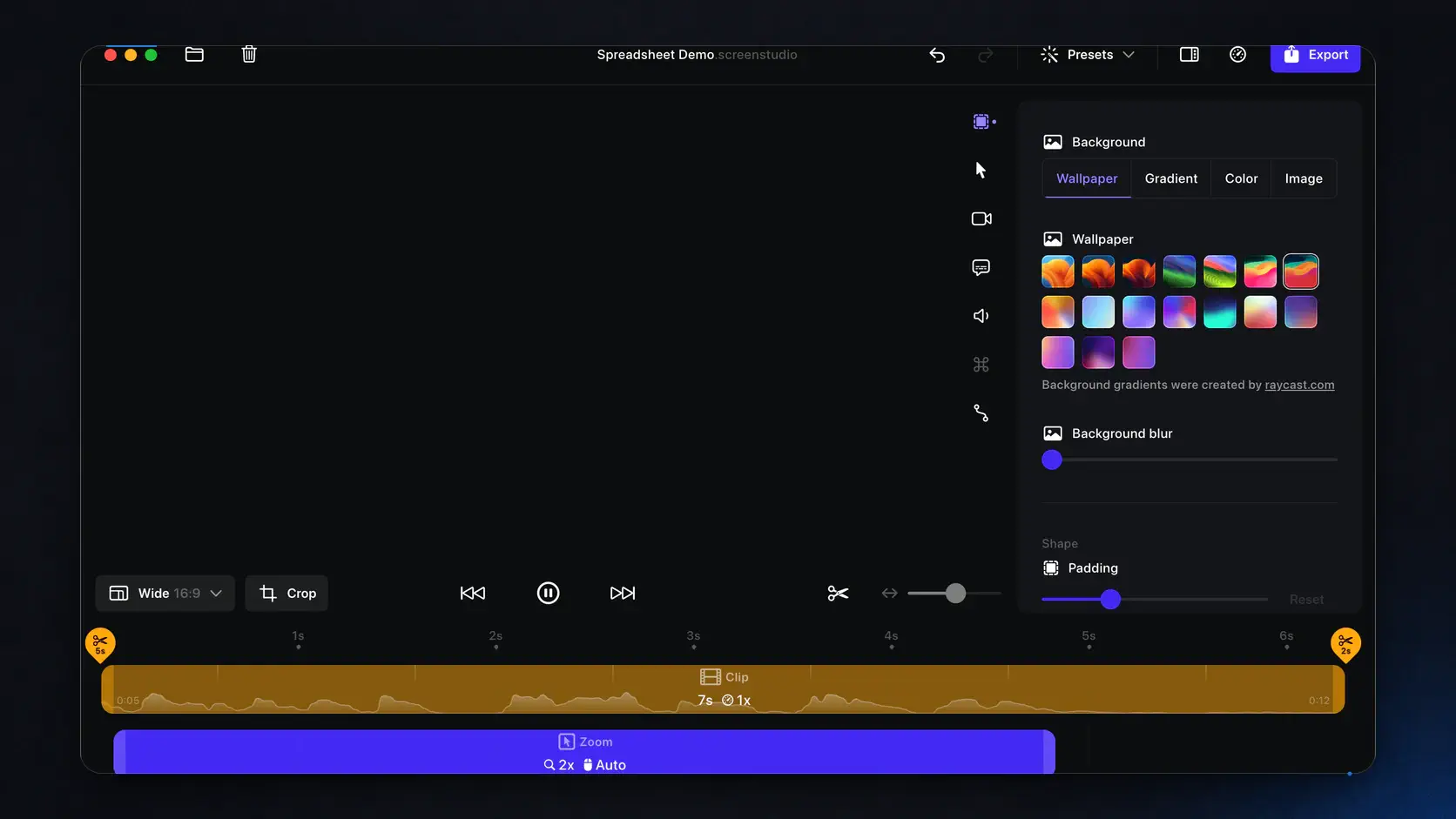
Why it deserves early attention: Screen Studio makes strong aesthetic decisions by default. Most people creating a launch clip, feature walkthrough, or social post will reach a presentable result faster by accepting those decisions than by building every animation manually.
Trade-offs: The workflow is intentionally opinionated, and the subscription costs $29 month-to-month or $9 per month billed annually, which is $108 per year. If you need more independent tracks, unusual screen-camera compositions, or 3D camera control, ScreenSage Pro is a better fit.
Choose Screen Studio if you value automatic polish over maximum editing freedom. For a detailed two-product breakdown, see ScreenSage Pro vs Screen Studio.
ScreenSage Pro — multi-source recording, VLog layouts, automatic zoom, and 3D motion
ScreenSage Pro is the better choice when a tutorial or product video needs more than a clean zoom-to-click recording. Its recording guide documents full-display, window, region, iPhone and iPad capture, system audio, microphone, webcam, multi-device synchronization, 2D and 3D auto-tracking, and text-cursor tracking.
The differentiator is what remains editable. Screen, camera, microphone, and system audio remain separate after recording, while captured interaction data stays available for post-production. You can cut unwanted spoken sections through the transcript, move between picture-in-picture, split-screen, camera-focused, and screen-focused layouts, refine automatic zooms, follow a text cursor in coding or form tutorials, and use 3D tilt or perspective when a product demo needs more visual depth.
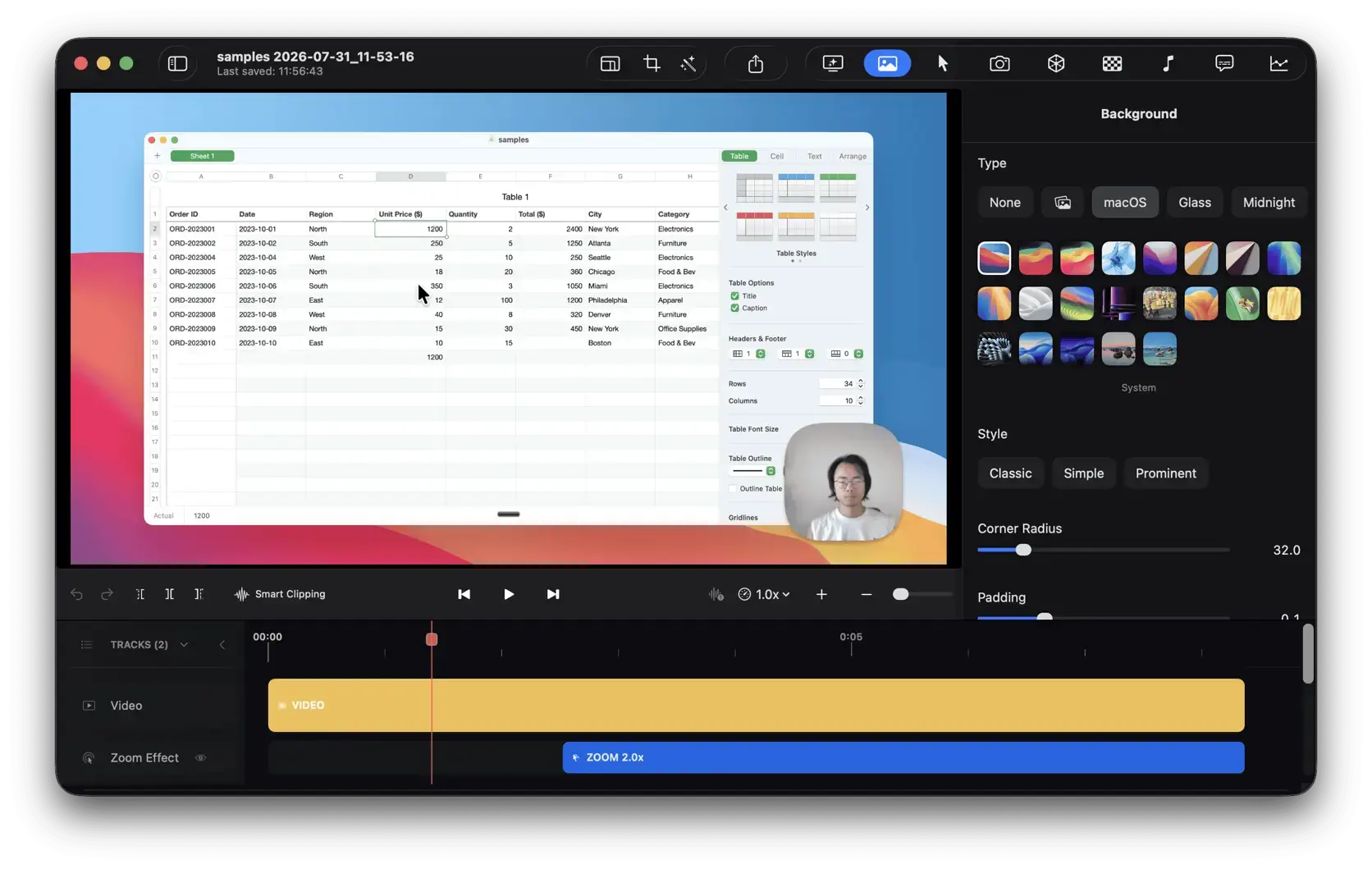
Why it deserves early attention: It combines automatic polish with the post-production controls that matter for product demos, software walkthroughs, tutorials, promotional videos, iOS demos, and everyday quick edits.
Trade-offs: Compared with highly flexible general-purpose editors such as CapCut, it gives up some customization in exchange for a simpler workflow for screen recordings, product demos, and tutorials.
The standard license is currently $99 as a one-time purchase for up to 3 Macs, with one year of updates and an optional $69 update renewal. You can keep using the last eligible version without renewing. Choose ScreenSage Pro if you want automation first, with deeper correction and layout control when the first pass is not enough.
The short example below shows how that extra camera control changes a flat screen recording while keeping the effect restrained.
Related guides explain automatic zoom, webcam overlays, and recording an iPhone from a Mac.
OBS Studio — free recording and streaming
OBS Studio is the best free Mac screen recorder when flexibility matters more than guided editing. It is free, open source, and available for macOS, Windows, and Linux. Its official feature list covers real-time video and audio capture, unlimited scenes, window and display sources, webcams, capture cards, an audio mixer, transitions, hotkeys, plugins, and live streaming.
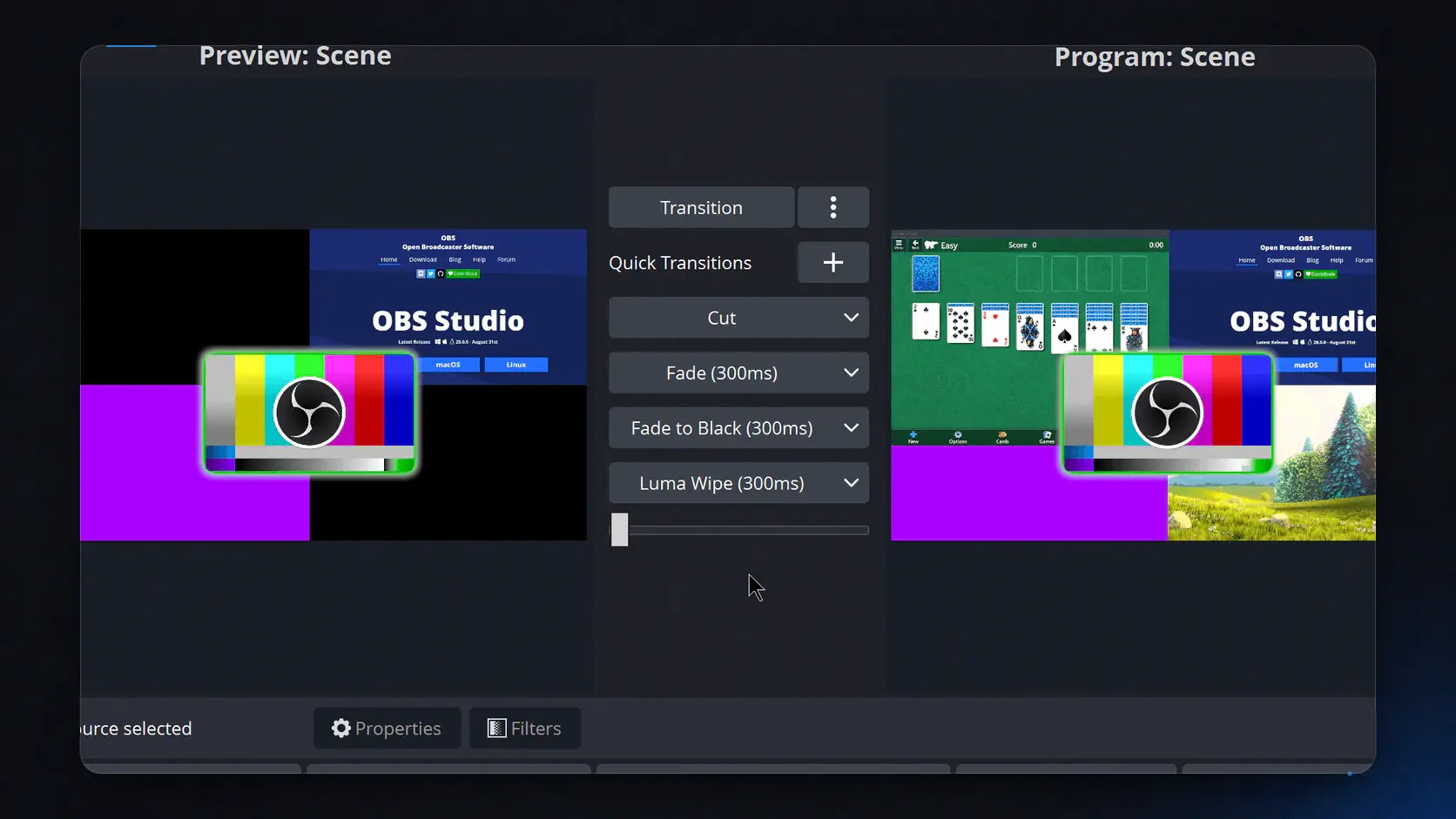
Why it deserves early attention: OBS gives technical users deep capture and live-production control for $0. It is a strong fit for webinars, game capture, live demos, multi-source broadcasts, and repeatable recording setups.
Trade-offs: OBS helps you construct and capture a production; it does not turn that capture into a polished tutorial for you. There is no integrated timeline editor comparable to Screen Studio, ScreenSage Pro, Camtasia, or Descript. Cursor animation, automatic zoom, captions, trimming, and marketing polish require another tool or a more manual workflow.
Choose OBS when your priority is free, configurable capture or streaming and you are comfortable learning scenes, sources, audio routing, and export settings.
Camtasia — training and long-form tutorials
Camtasia is built for people who need a screen recorder and a conventional video-production environment in the same application. TechSmith documents separate screen, camera, microphone, and system-audio tracks, a multi-track editor, cursor editing, annotations, themes, templates, captions, translation, and text-based editing through its Audiate workflow.
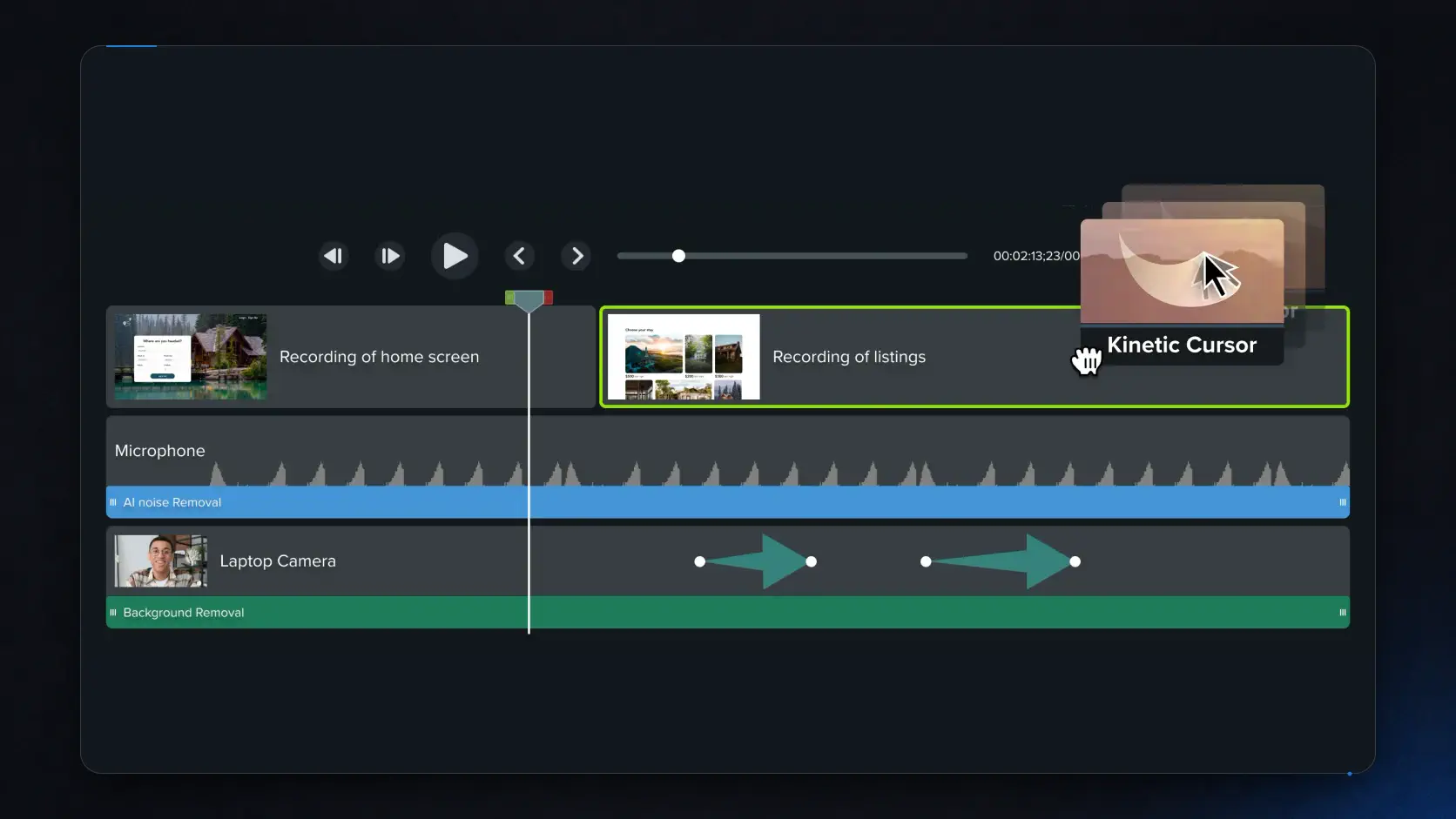
Why it is worth considering: A 30-minute training module has different needs from a 30-second launch clip. Camtasia is better suited to chaptered instruction, repeated course production, corporate training, accessibility work, branded templates, and detailed timeline edits.
Trade-offs: The extra production depth makes it heavier than Screen Studio or ScreenSage Pro for a quick product demo. Pricing also needs a careful read: the $39-per-year Starter plan allows recording, but Camtasia Editor exports are watermarked. The Essentials plan with the complete editor currently starts at $179.88 per year.
Choose Camtasia when your output is closer to a course, training library, or long-form explainer than a fast social clip.
Descript — editing narrated recordings as text
Descript is the most useful choice when the narration is the backbone of the video. It records screen, webcam, microphone, and system audio, then turns the recording into a transcript-led editing project. Removing a sentence from the transcript can remove the matching part of the video, while tools for captions, filler words, audio cleanup, and shareable links shorten the path from spoken draft to publishable video.
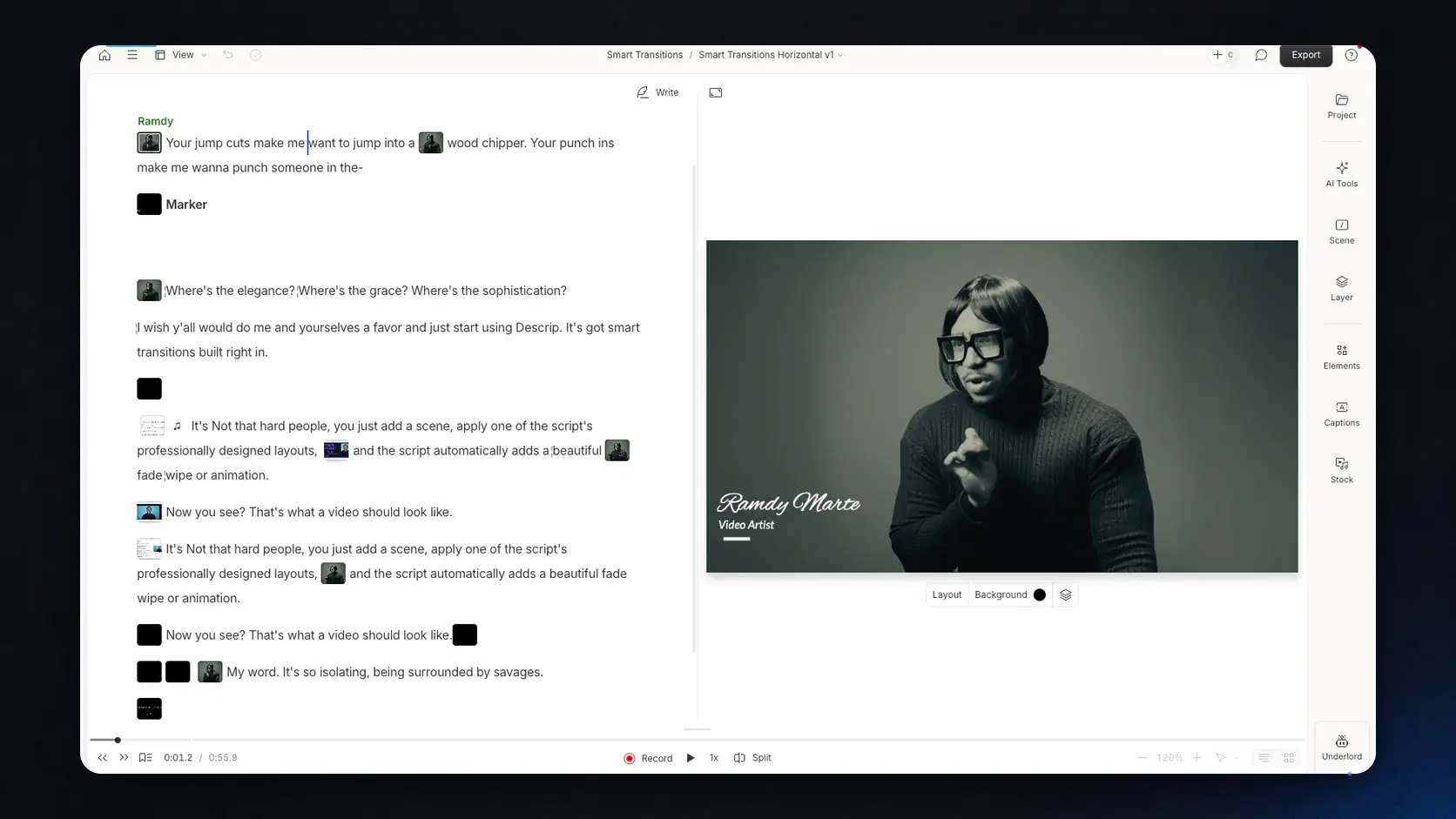
Why it is worth considering: For founder updates, narrated tutorials, interviews, webinars, and talking-head walkthroughs, editing words can be faster than hunting for every mistake on a timeline.
Trade-offs: Descript is not primarily a specialist cursor-motion and automatic-zoom editor. If the viewer must follow tiny interface controls, the attention-guidance tools in Screen Studio or ScreenSage Pro are a more natural fit. Its AI and media-hour limits also make the plan comparison important.
The free plan currently includes 1 media hour per month and 720p watermark-free export. The Hobbyist plan is $16 per person per month when billed annually and includes 10 media hours and 1080p export.
Choose Descript when you want to edit the story through its transcript.
Loom — async team communication
Loom is the fastest route from recording to a link that coworkers or customers can watch, comment on, and react to. Its real product is the delivery loop: capture a screen-and-camera message, publish it to a workspace, share it, and see how people engage.
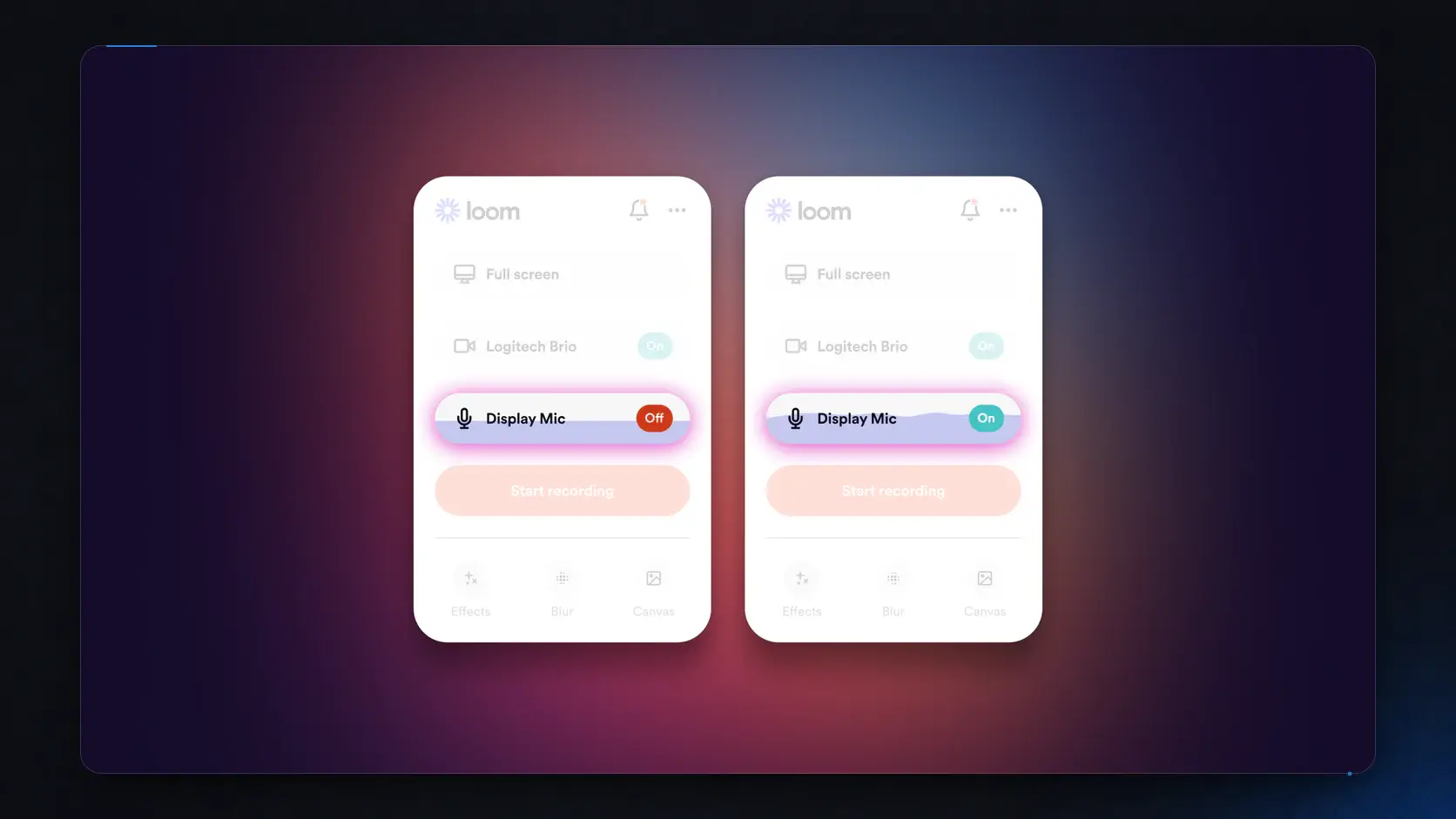
Why it is worth considering: Loom is excellent for design feedback, bug context, customer updates, onboarding messages, sales follow-ups, and internal walkthroughs that should not become editing projects.
Trade-offs: Cloud-first convenience is not the same as production control. Loom can trim and stitch on paid plans, generate transcripts, and add AI packaging, but it is less suited to precise cursor choreography, 3D motion, advanced local exports, or a complex multi-track tutorial.
The Starter plan is free but is limited to 25 videos per person and 5 minutes per screen recording, with video up to 720p. Business currently costs $18 per user per month and adds unlimited videos, unlimited recording length, basic editing, downloads, and up to 4K capture.
Choose Loom when the goal is a useful conversation, not a finished marketing asset.
CleanShot X — screenshots and quick recordings
CleanShot X is a Mac capture utility first and a video editor second. That is exactly why it works well for people who move between screenshots, annotations, scrolling capture, GIFs, and short recordings throughout the day.
Its current feature page lists screen recording with microphone and macOS audio, webcam, click and keystroke highlighting, automatic notification hiding, built-in trimming, quick drag-and-drop, and optional cloud links. It is inaccurate to describe CleanShot X as having no cursor-related recording features; the real limitation is that it does not provide the deeper automatic camera-motion and timeline workflows of the top two picks.
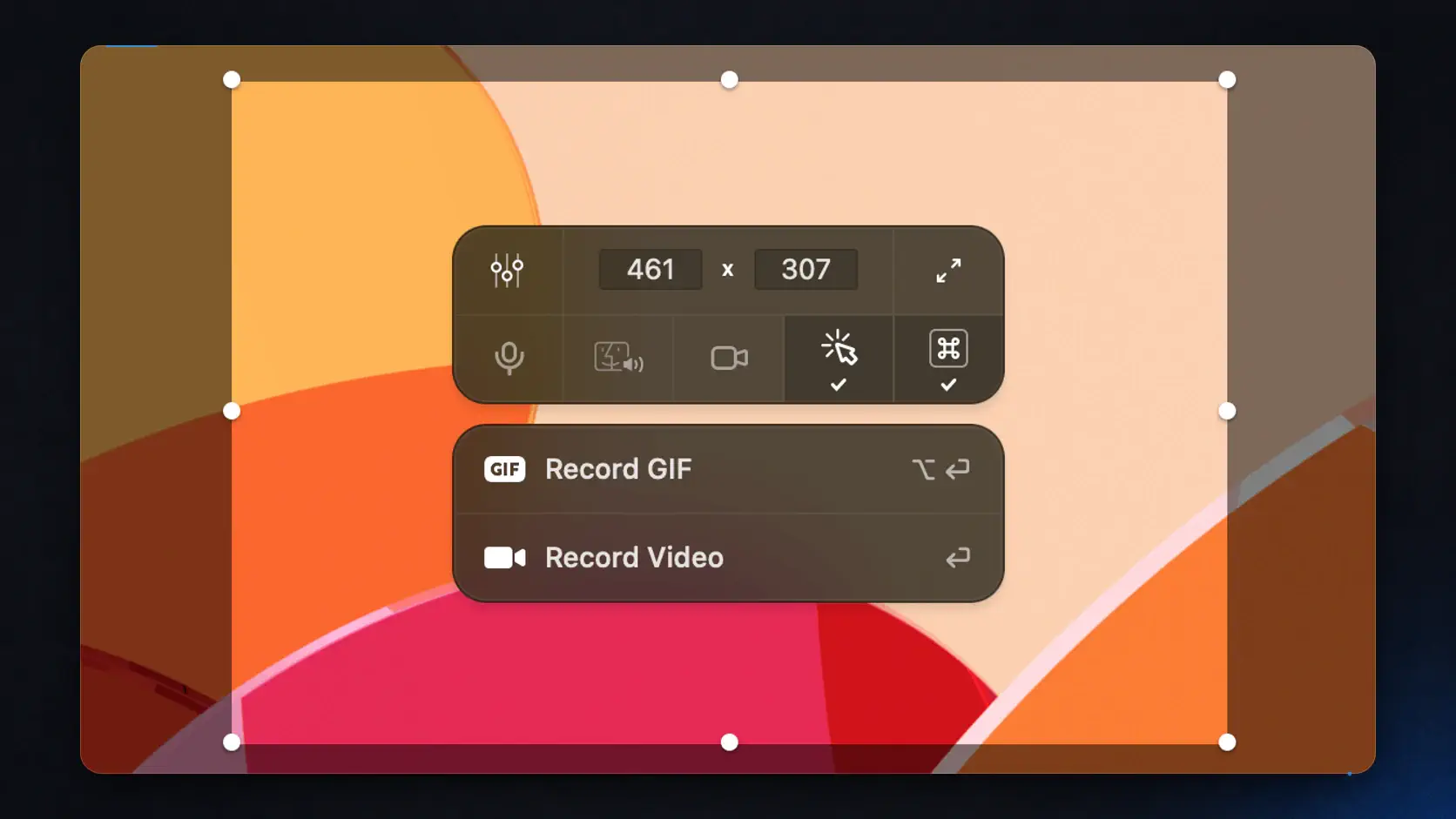
Why it is worth considering: It removes the cost of switching between separate screenshot and lightweight recording utilities. Designers, developers, support teams, and technical writers can use one native Mac app for most everyday capture tasks.
The basic license is currently $29 as a one-time payment, includes one year of updates and 1 GB of cloud storage, and offers an optional $19-per-year update renewal.
Choose CleanShot X when screenshots are as important as recordings.
macOS Screenshot and QuickTime Player — the built-in option
Apple already gives every Mac a capable basic recorder. Press Shift-Command-5 to open Screenshot and record the entire screen, a window, or a selected portion. Apple’s current Mac guide also documents microphone selection, timers, pointer or click display, save-location controls, HDR or SDR capture options, and simple trimming after recording.
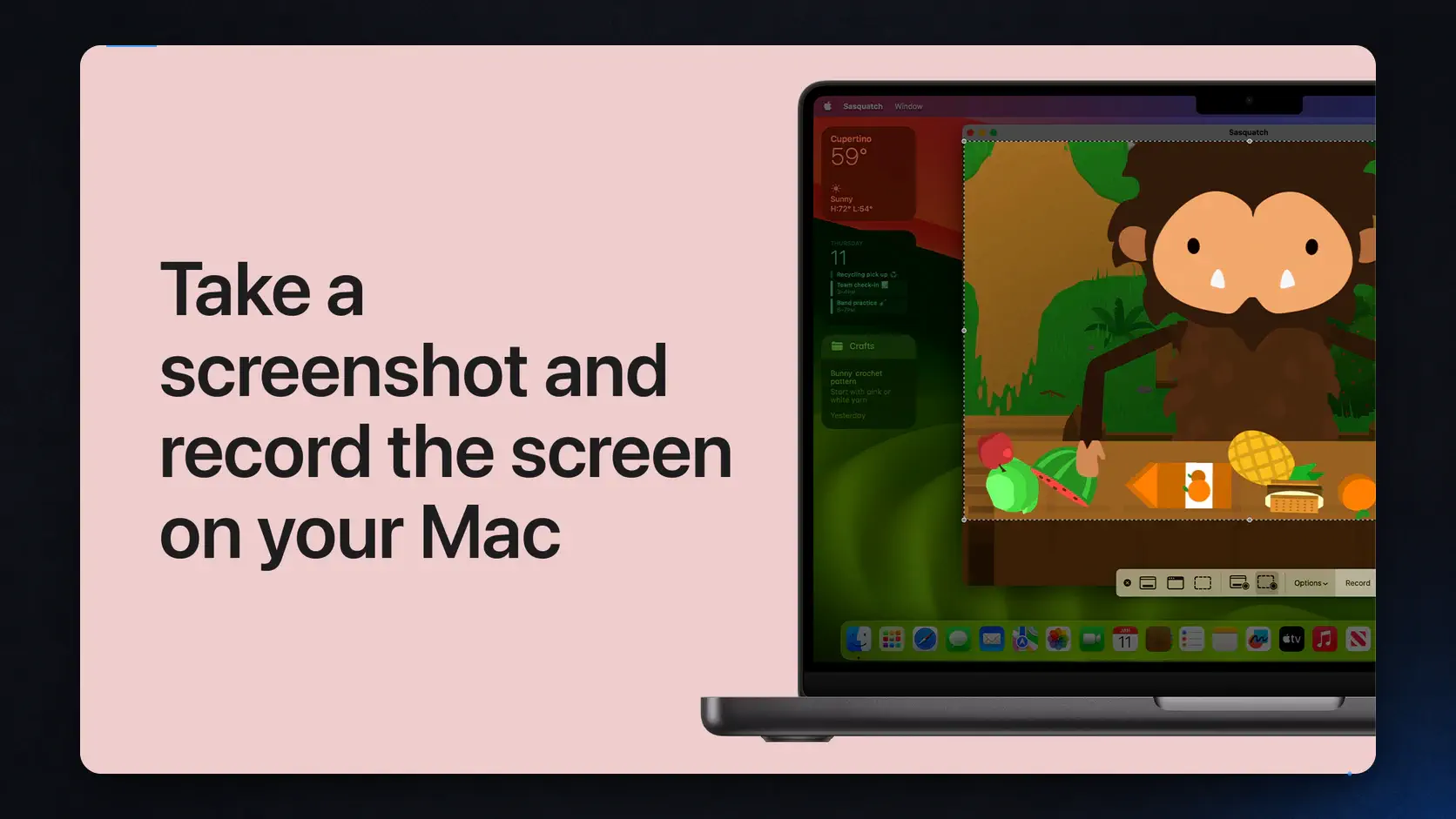
Why it is worth considering: It is free, immediate, and often sufficient for a one-off clip, a reproduction video, or a recording that will be edited elsewhere.
Trade-offs: Apple’s current Screenshot guide documents microphone input but does not show a system-audio source. The built-in workflow also lacks automatic zoom, cursor smoothing, captions, multi-source layout editing, cloud feedback, and a full timeline. QuickTime Player is useful for basic capture and trimming, not for turning a recording into a guided tutorial.
Choose the built-in recorder when you need proof of what happened, not a production-ready explanation.
Which Mac screen recorder should you choose?
Match the app to the costliest part of your workflow:
- Choose Screen Studio when creating a beautiful short demo quickly matters most.
- Choose ScreenSage Pro when you want automated polish plus multi-source, layout, text-cursor tracking, or 3D control.
- Choose OBS Studio when the budget is $0 or the job includes live streaming and complex sources.
- Choose Camtasia when the final asset is a structured training video or course.
- Choose Descript when narration and transcript editing drive the production.
- Choose Loom when the result should become a shared conversation immediately.
- Choose CleanShot X when screenshots, GIFs, and short recordings belong in one daily tool.
- Choose macOS Screenshot or QuickTime Player when a basic local capture is enough.
Before paying, record one representative two-minute workflow. Include the smallest UI text your audience must read, one system-audio moment, one correction, and the final delivery step. The best recorder is the one that creates the fewest costly fixes after that test.
If internal audio is essential, use our Mac system-audio recording checklist before committing to a long session.
Other Mac screen recorders worth considering
ScreenFlow remains a capable Mac-only choice for people who prefer a traditional timeline, iOS capture, motion graphics, and local export. SmoothCapture is a newer specialist centered on 3D device mockups. Both can fit particular workflows, but they overlap categories already represented above.
Frequently asked questions
What is the best screen recording software for Mac in 2026?
For polished demos with relatively little manual editing, start with Screen Studio. When multi-source recording, transcript-guided cuts, 3D motion, and deeper post-recording control matter more, look at ScreenSage Pro.
What is the best free screen recorder for Mac?
OBS Studio is the best free option for configurable recording, multiple sources, and streaming. The built-in macOS Screenshot tool is faster for a simple one-off capture because it requires no installation, but it lacks the production, editing, and attention-guidance tools of dedicated recorders.
Is ScreenSage Pro a Screen Studio alternative?
Yes. Both products target polished Mac demos and tutorials. Screen Studio is more opinionated; ScreenSage Pro adds multi-source synchronization, transcript-guided editing, dynamic screen-camera layouts, text-cursor tracking, editable 2D or 3D camera motion, and a one-time licensing option. Compare them in the full feature guide.
Can a Mac screen recorder capture system audio?
Yes, but support depends on the app and recording engine. Screen Studio, ScreenSage Pro, OBS Studio, Camtasia, Descript, Loom, and CleanShot X all document system or macOS audio capture. Apple’s current Screenshot guide lists microphone selection but does not show a system-audio source.
Do I need to pay for a good Mac screen recorder?
No. OBS Studio provides powerful recording and streaming for free, while macOS includes basic screen capture. Paid apps become valuable when automatic zoom, cursor treatment, captions, editing, cloud feedback, or faster finishing saves more time than the license costs.
Price and feature snapshot
Prices checked July 31, 2026, in USD before tax; plans and regional pricing may change.


Final verdict
Screen Studio suits creators who want automatic zoom, cursor treatment, canvas styling, and export presets to reduce manual production work. ScreenSage Pro suits creators who want to keep that speed while directing transcript edits, camera motion, layouts, sources, and the timeline.
If the latter workflow sounds like yours, download ScreenSage Pro and try every feature before deciding; video export requires a paid license.
Auto zoom, cursor smoothing, text cursor follow, and fast export for Mac demos and tutorials.
Download ScreenSage Pro