
Screen Recorder With Auto Zoom: 6 Features That Matter
Learn what a screen recorder with auto zoom should offer, including cursor highlight, click feedback, smoothing, editable zooms, and when each effect distracts.
A good screen recorder with auto zoom should do more than enlarge the frame. Auto zoom changes the camera framing; cursor highlight changes the pointer's appearance; click feedback confirms an action; cursor smoothing cleans up the pointer path. These effects solve different viewing problems, and stacking all of them at full strength can make a demo harder to watch.
For Mac product demos, ScreenSage Pro supports auto-generated and editable zoom ranges, fixed-center framing, cursor styling and sizing, click feedback, cursor smoothing, cursor style stabilization, and text cursor follow for coding or typing-heavy tutorials.
What is an auto zoom screen recorder?
An auto zoom screen recorder records your screen and automatically creates close-up moments around important actions. Those moments may be generated from clicks and other recorded interaction events, then follow the pointer or stay on a fixed area during editing.
The value is simple: viewers should not have to hunt for the cursor or squint at tiny interface text. Auto zoom turns a raw capture into a guided walkthrough.
Tools in this category typically compete on automatic zoom, cursor tracking, smooth cursor motion, and fast product-demo polish. The buying decision is therefore not only about whether a tool can record. It is about how deliberately it directs attention and how easily you can correct that direction.
Why auto zoom matters for product demos
Product demos usually fail for one of three reasons:
- The viewer cannot read the interface.
- The viewer loses track of the cursor.
- The recording shows every action, but not the reason the action matters.
Auto zoom helps with the first two. It turns important clicks and UI changes into visual beats. Instead of forcing the viewer to scan the whole screen, the video gently narrows attention to the active area.
For SaaS walkthroughs, onboarding clips, and launch videos, this can make the same recording feel more deliberate. You still need a clear script and a clean workflow, but auto zoom reduces the amount of manual editing needed to make the video watchable.
The 6 features that matter most
1. Editable zoom segments and a fixed-center override
Automatic zoom is only useful if you can fix it. A tool may guess the wrong moment, zoom too far, stay zoomed for too long, or miss a context switch.
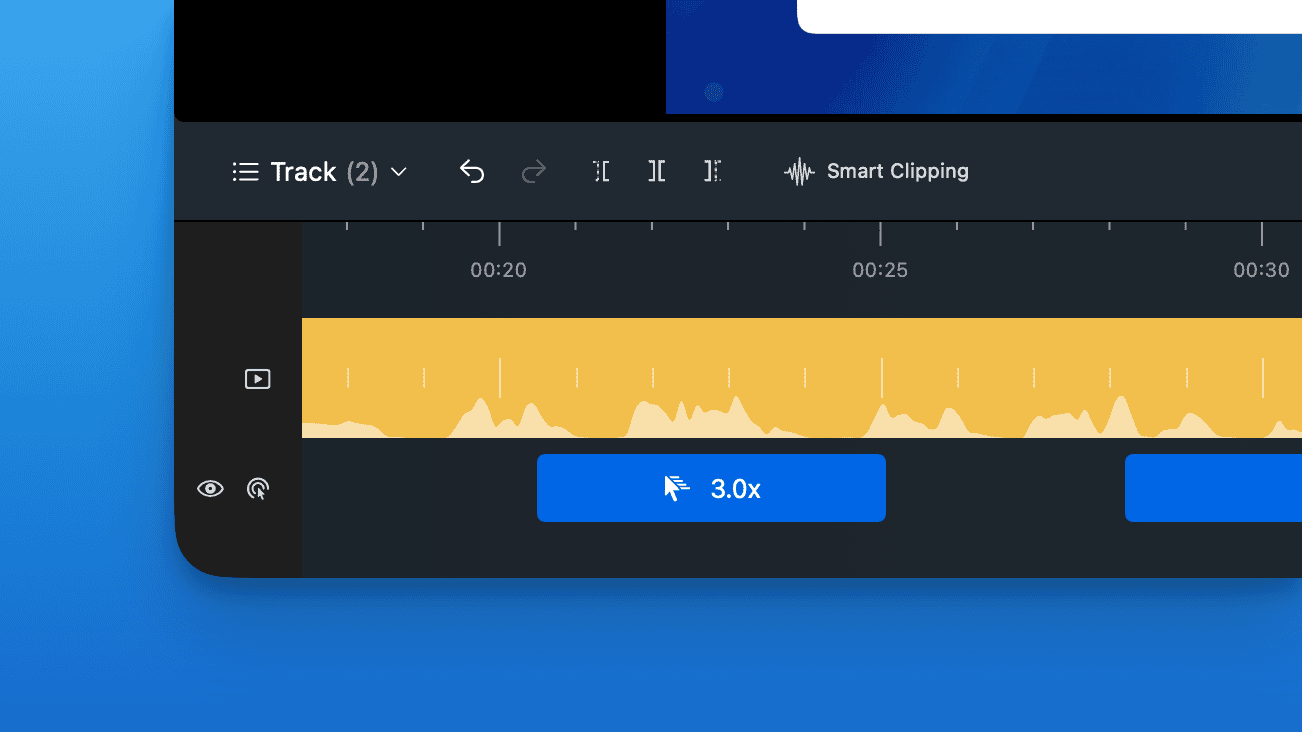
ScreenSage Pro treats zooms as timeline segments. Each range can be reviewed, moved, resized, split, adjusted, or removed after recording. When the important content is not under the pointer, Fixed Center lets you lock the shot to a chosen area instead of following the cursor.
2. Cursor-following auto zoom
Cursor-following zoom is the basic auto zoom behavior most people expect. ScreenSage Pro's Auto 2D Zoom creates segments from recorded mouse events, and Auto Track follows the recorded pointer inside those segments so the viewer sees the action.
This is useful for product tours, settings walkthroughs, and workflows where each click matters. It becomes distracting when the pointer sweeps across the interface while the viewer still needs to read the previous state. In that case, shorten the segment or use a fixed center.
3. Cursor highlight and size control
A screen recorder with cursor highlight keeps the pointer easy to find without changing the camera framing. ScreenSage Pro provides cursor scale and style controls, including high-contrast and focus-oriented cursor styles, so you can improve visibility while preserving the full-page context.
Cursor highlight is often enough for dashboards, forms, and overview shots where zooming would hide useful context. But a pointer that is too large, decorative, or high-contrast can cover small controls and compete with the product. Judge it at the final playback size, not only in the editor.
4. Click feedback
Click feedback briefly animates the cursor to show that a click happened. In ScreenSage Pro, this is a cursor press-style zoom animation, not a camera zoom segment. It helps when the UI response is subtle or delayed and the viewer might otherwise miss the action.
Use it selectively. Rapid repeated clicks can turn the pointer into a constant pulse, and combining strong click feedback with a new camera zoom on every click gives the viewer two competing signals for one action.
5. Cursor smoothing and style stabilization
Raw cursor movement often looks shakier in a finished video than it felt during recording. Cursor smoothing removes small path irregularities, while style stabilization solves a different problem: rapid flicker between cursor shapes, such as an arrow and text selector.
ScreenSage Pro provides separate controls for both. Lighter smoothing is better for precise dragging, drawing, or resizing, where the exact path communicates the action. Stronger style stabilization is useful when transient cursor-shape changes are only visual noise; keep it lighter when the cursor shape itself tells the viewer what can be clicked or typed.
6. Text cursor tracking
For coding tutorials, the mouse pointer is often not the real focus. The important action is where code is being typed.
Text cursor follow keeps the frame close to the insertion point during typing, making it useful for code editing, document writing, terminal commands, and form-heavy workflows. Because macOS may not always provide an accurate caret position, play the complete segment and switch to a fixed center when tracking misses the intended line.
Auto zoom vs cursor highlight, click feedback, and smoothing
These effects all guide attention, but they change different parts of the recording:
| Effect | What changes | Use it when | Turn it down when |
|---|---|---|---|
| Auto zoom | Camera framing and magnification | UI text is small or the click path matters | Viewers need the whole layout or zooms fire too often |
| Cursor highlight | Pointer size or appearance | The frame is readable but the pointer is hard to find | The pointer covers controls or becomes the visual subject |
| Click feedback | Brief pointer animation on click | A click needs visible confirmation | The workflow contains many rapid or low-value clicks |
| Cursor smoothing | Pointer movement path | Hand jitter makes the recording feel noisy | Exact dragging, drawing, or resizing needs to remain literal |
| Style stabilization | Changes between pointer shapes | Arrow/I-beam flicker distracts from the task | Pointer-shape changes carry useful meaning |
The cleanest result usually uses one primary attention cue and one supporting cue. For example, keep the whole dashboard visible, add a modest cursor highlight, and reserve auto zoom for the two controls that are genuinely hard to read.
Auto zoom vs manual zoom editing
Manual zoom editing gives you control, but it costs time. Auto zoom saves time, but it can make bad guesses. A practical workflow uses automation for the first pass and manual edits for the exceptions.
Use auto zoom to create a strong first pass. Then review the timeline and make small edits:
- Delete zooms that do not clarify anything.
- Extend zooms when the viewer needs more reading time.
- Reduce zoom intensity when the frame feels jumpy.
- Switch to a fixed area when the cursor is not the focus.
- Use text cursor follow for typing sequences.
This hybrid workflow is the practical middle ground. It keeps production fast without making the final video feel automated.
If you need intentional perspective, entrances, or camera choreography rather than a functional close-up, use a separate 3D product-demo motion workflow instead of forcing every shot through auto zoom.
When auto zoom helps and when it hurts
Auto zoom helps when:
- The interface has small controls.
- The viewer needs to follow a click path.
- The recording includes menus, settings, or dense UI.
- You are creating product demos, launch videos, onboarding clips, or tutorials.
- The final video will be watched in a small player.
Auto zoom hurts when:
- The viewer needs to understand the whole layout.
- The zoom changes too often.
- The recording is already tightly framed.
- The cursor is moving while the important content is elsewhere.
- Motion becomes more memorable than the product.
Cursor effects can also hurt when several cues compete. A large focus cursor, a click pulse, and a camera zoom may all be individually clear, but using all three on every click makes motion more memorable than the workflow. Zoom to clarify, highlight to locate, and animate clicks only when confirmation matters.
Recommended ScreenSage Pro workflow
For a polished product demo on Mac:
- Choose the Auto 2D Zoom recording preset when the workflow contains small, click-driven UI.
- Record naturally instead of trying to perform for every future zoom.
- Review the generated blue zoom ranges on the timeline.
- Remove unnecessary ranges; adjust timing, zoom level, and focus where needed.
- Use Fixed Center when the pointer is moving but the important content is not.
- Choose a cursor size and style that remain visible at the final playback size.
- Add click feedback only where a click needs confirmation.
- Apply cursor smoothing and style stabilization at the lightest useful level.
- Use text cursor follow for code, terminal, or typing-heavy scenes, then check its accuracy.
- Export and watch the video at the size your audience will actually see.
This keeps the workflow simple: record first, guide attention second, polish only what matters.
Buyer checklist
When choosing a screen recorder with auto zoom, look for:
- Automatic zoom generation from recorded interactions, with cursor tracking inside each segment.
- Editable zoom timeline segments.
- Manual zoom overrides.
- Separate cursor highlight, click feedback, smoothing, and style-stabilization controls.
- Text cursor tracking for coding tutorials.
- Export quality that keeps UI text sharp.
- A workflow that lets you record naturally, then polish after.
For a broader buying decision beyond zoom and cursor effects, compare the best screen recording software for Mac.
FAQ
What is the best screen recorder with auto zoom for Mac?
The best choice depends on your workflow. For product demos and tutorials, prioritize editable zoom ranges, a fixed-center override, cursor highlight, click feedback, cursor smoothing, and sharp Mac recording. ScreenSage Pro combines those controls with text cursor follow for typing-heavy scenes.
Is cursor highlight the same as auto zoom?
No. Cursor highlight changes the pointer's size or appearance so it is easier to locate while the full frame stays visible. Auto zoom changes the camera framing and magnification to show a smaller area in more detail. Use highlight for orientation and zoom when interface details are too small to read.
What does click feedback add to a screen recording?
Click feedback adds a brief visual response to the pointer when a click occurs. It confirms the action without necessarily moving the camera. It is useful when a button's response is subtle, but it can become noisy during rapid repeated clicks or when auto zoom already makes the action obvious.
Does cursor smoothing also smooth the auto zoom camera?
No. Cursor smoothing cleans up the recorded pointer path, while zoom segments control camera framing, timing, and magnification. They can work together, but they are separate controls. Review both: a smooth pointer can still sit inside a badly timed zoom, and a good zoom can still contain distracting pointer jitter.
Is auto zoom better than manually adding zooms?
Auto zoom is faster, but manual editing is more precise. The best workflow combines both: let the recorder generate zooms automatically, then edit the few moments that need better timing or framing.
Does auto zoom work for coding tutorials?
Auto zoom can help with navigation, but coding tutorials also need text cursor tracking. When the viewer needs to follow typing, the insertion point is often more important than the mouse pointer. Review the whole segment because caret positions can be inaccurate; use a fixed center if tracking jumps to the wrong line.
When should I turn off auto zoom?
Turn it off or remove a segment when viewers need the full layout, the source is already tightly framed, the pointer moves away from the real subject, or repeated zooms make the video feel restless. A modest cursor highlight is often the better cue when the interface is already readable.
Conclusion
A screen recorder with auto zoom should make your product demo easier to understand, not just more animated. The real value is attention control: use camera framing for detail, cursor highlight for orientation, click feedback for confirmation, and smoothing to remove movement noise.
ScreenSage Pro keeps those decisions editable after recording, including zoom ranges, fixed-center shots, cursor effects, and text cursor follow. Use them inside an end-to-end SaaS product demo workflow, then download ScreenSage Pro and test the finished clip at your audience's real playback size before deciding how much motion it needs.
Auto zoom, cursor smoothing, text cursor follow, and fast export for Mac demos and tutorials.
Download ScreenSage Pro