Mac Screen Recording No Sound? Fix Mic & System Audio
Mac screen recording has no sound? Diagnose missing mic or system audio, fix QuickTime and Screenshot settings, check permissions, and test before recording.
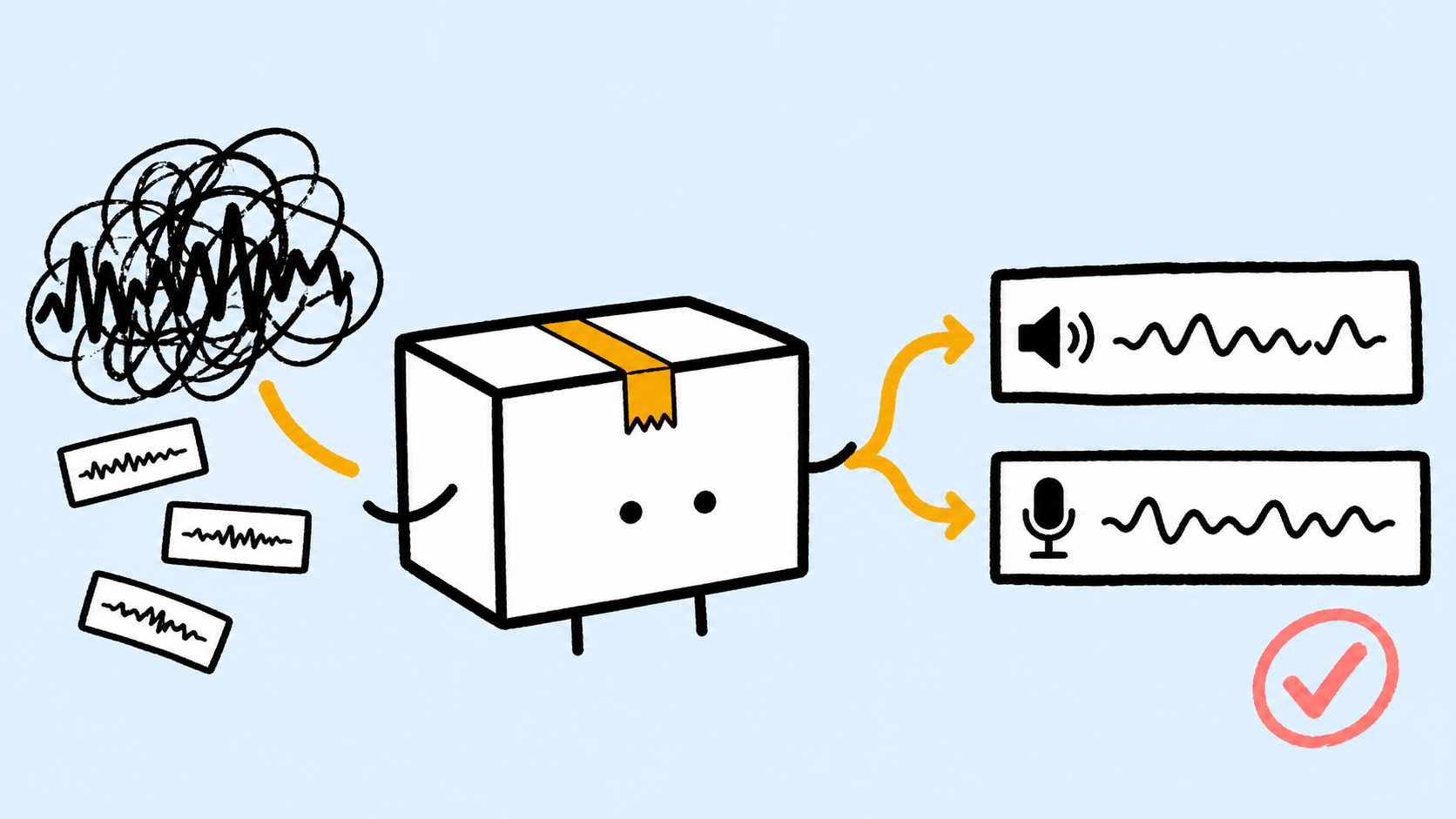
If a Mac screen recording has no sound, first identify which source is missing. No narration usually means the wrong microphone was selected or microphone access is blocked. No browser, meeting, or app sound means system audio was not captured. Hearing audio through your speakers or headphones while recording does not prove that it was written into the video.
Use the playback result to choose the first check:
| What you hear in the recording | Likely problem | Check first |
|---|---|---|
| App sound is present, but your voice is missing | Microphone source | Microphone selection, input meter, and Microphone permission |
| Your voice is present, but app sound is missing | System-audio source | Whether the recorder explicitly supports and enables system audio |
| Neither source is present | Playback, permissions, or source selection | Player mute/volume, then macOS permissions and recorder inputs |
| You heard everything while recording, but the file is silent | Monitoring was mistaken for capture | Recorder inputs and a short playback test |
Fix Mac screen recording with no sound in 5 checks
Work through these checks in order. Changing every audio setting at once makes the cause harder to isolate.
1. Identify the missing audio source
Play the failed recording with the player volume turned up. Listen separately for your voice and for audio produced by the Mac. If only one is missing, troubleshoot that source instead of resetting the whole recording setup.
Microphone audio comes from an input device such as the Mac microphone, AirPods, a headset, a USB microphone, a display, or an audio interface. System audio—also called internal audio, computer audio, or app audio—is sound played by macOS applications.
2. Check QuickTime or Screenshot audio options
Press Shift-Command-5, choose a screen-recording mode, then open Options. If you need narration, select the intended microphone instead of None.
On current macOS versions, choosing File → New Screen Recording in QuickTime Player commonly opens the Screenshot controls. Apple's current Mac screen-recording guide documents microphone selection for both workflows, but it does not list a built-in system-audio source. That distinction explains many “QuickTime screen recording no audio” cases: selecting a microphone can add your voice, but it is not the same as capturing sound from an app.
3. Check macOS privacy permissions
For a third-party recorder, open System Settings → Privacy & Security → Screen & System Audio Recording and confirm the app is allowed. Apple documents this control in its screen and system audio access guide.
If narration is missing, also open Privacy & Security → Microphone and allow the recorder to use the chosen input. Permission grants access; it does not automatically select or enable an audio source. Return to the recorder and check its inputs again. If the permission state has not refreshed, quit and reopen the app before retesting.
4. Use a recorder that explicitly captures system audio
If your voice is present but a browser video, meeting, alert, game, or app sound is absent, changing microphones will not fix it. Use a recorder that explicitly offers System Audio, Internal Audio, or an equivalent source, and enable that source before recording.
Do not infer system-audio support from a generic “record screen” button. Confirm the feature in the app's controls or documentation. Some apps can also restrict capture; Apple notes that certain apps, such as the Apple TV app, may not allow their windows to be recorded.
5. Record and replay a 10-second test
Play a short sound in the target app, say one sentence into the microphone, stop, and replay the file. Confirm both sources in the saved recording—not only in your headphones—before starting the full take.
This test is especially important after changing a microphone, connecting AirPods or a dock, switching recording engines, or granting a new permission.
QuickTime vs Screenshot vs a dedicated recorder
Use Screenshot for a quick recording with optional narration. Opening a new screen recording from QuickTime often leads to the same Screenshot controls on current macOS. Use a dedicated recorder when the finished video must include internal app sound, separate source control, or repeatable preflight checks.
| Tool | Best for | Audio behavior to verify | Main trade-off |
|---|---|---|---|
Screenshot (Shift-Command-5) | One-off screen clips and microphone narration | Apple documents a selectable microphone; its current guide does not list a system-audio source | Fast and built in, but limited audio control |
| QuickTime Player | Opening, trimming, and sharing basic Mac recordings | New Screen Recording commonly opens Screenshot; older interfaces also expose microphone input | Familiar, but not a separate modern system-audio workflow |
| A dedicated recorder | App audio, narrated demos, courses, meetings, and editable production | Choose one that explicitly supports system audio and microphone capture | Requires permission setup, but offers more control |
The practical decision is not “QuickTime or Screenshot?” when both lead to the same capture controls. It is microphone-only capture or explicit system-audio capture.
How to record system audio and microphone in ScreenSage Pro
ScreenSage Pro keeps system audio and microphone audio as separate sources, so you can confirm them before recording and balance them after recording. Use this workflow:
1. Use the Modern recording engine
ScreenSage Pro's system-audio guide documents system-audio capture with the Modern engine. The Legacy engine is a compatibility fallback and disables system-audio capture. If the System Audio control is unavailable, check the engine before changing unrelated settings.
2. Enable System Audio
Choose the screen, window, or area, then enable System Audio before the take. This source captures supported audio playing through macOS, including media, meeting sound, and app sound effects.

3. Select and verify the microphone
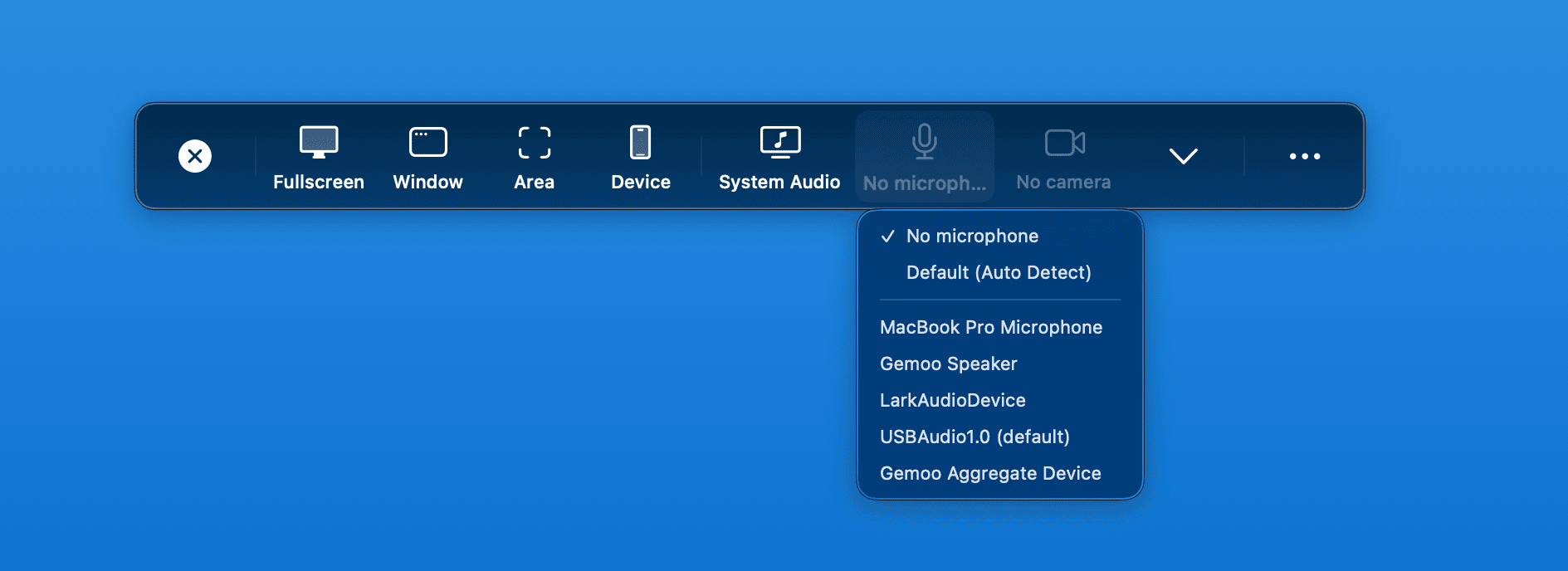
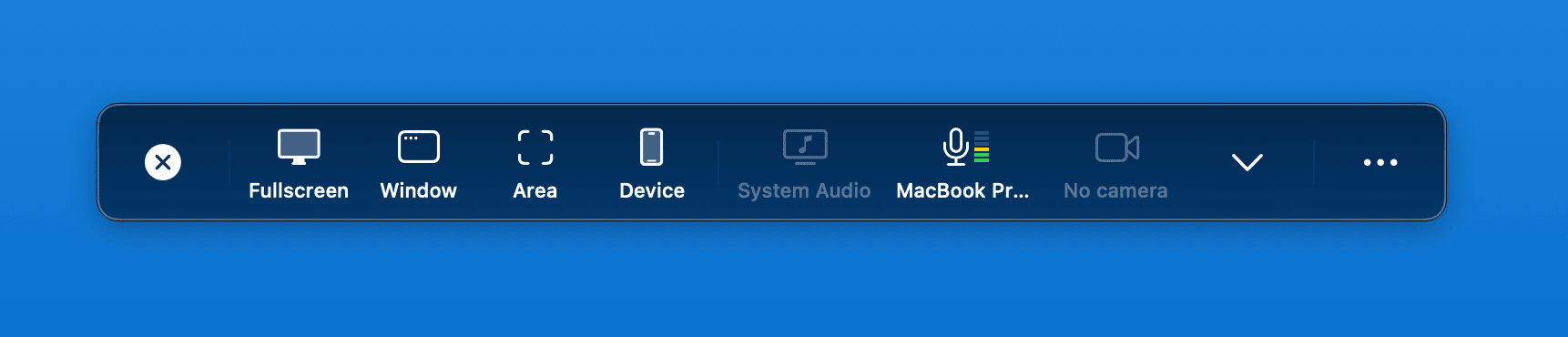
Open the microphone selector and choose the intended input. ScreenSage Pro can use the system default or a manually selected microphone. Confirm the device name and make sure the live level meter responds when you speak.
4. Make the 10-second test clip
Include both app audio and one spoken sentence. Replay the saved clip and confirm both tracks. A visible microphone meter proves that the input is active, but playback is still the final check that the recording contains the expected sound.
5. Balance the sources after recording
In the editor, adjust System and Microphone volume separately. You can lower app sounds that compete with narration and apply fade-in or fade-out without rerecording an otherwise correct visual take.
Why a short test is safer than fixing audio later
A muted track and a missing track are different problems. If the recorder captured audio but its track is muted or too quiet, an editor may be able to restore the level. If the microphone or system-audio source was never captured, the finished video contains no hidden copy to recover.
For a product demo, a failed take also means rebuilding the setup: restoring test data, reopening windows, returning to the right state, repeating narration, exporting, and reviewing again. A 10-second test checks the only evidence that matters—the saved file—before that work is repeated.
Frequently asked questions
Can the built-in Mac screen recorder capture system audio?
Apple's current Screenshot and QuickTime instructions document microphone selection, but they do not list a built-in system-audio source in the recording controls. For browser, meeting, game, or app audio, use a recorder that explicitly documents system-audio capture and test the target app before a long recording.
Why does a QuickTime screen recording have no audio?
If narration is missing, open the recording Options and select a microphone, then check macOS Microphone permission. If app sound is missing, note that QuickTime's current screen-recording workflow commonly opens Screenshot, and Apple's guide lists microphone input rather than an internal system-audio source.
Why is there still no sound after I granted permission?
Permission only lets an app access a source; it does not guarantee that the source is selected. Recheck the microphone and system-audio controls. In ScreenSage Pro, also confirm that the Modern recording engine is active, because Legacy mode disables system-audio capture.
How do I record system audio and microphone at the same time on Mac?
Use a recorder that explicitly supports both sources. In ScreenSage Pro, select the Modern engine, enable System Audio, choose a microphone, and replay a 10-second test. After recording, System and Microphone volume remain independently adjustable.
Can I recover audio that was not recorded?
First check whether an audio track or waveform exists and is merely muted. If the source was never captured, it generally cannot be recovered from the video file. You may need to rerecord narration or the original app sound, which is why a short preflight recording is the safer fix.
Stop silent recordings before they become full retakes
When a Mac screen recording has no sound, diagnose the saved file first: missing voice points to the microphone; missing app sound points to system-audio capture. Then check QuickTime or Screenshot options, macOS permissions, the recorder's audio sources, and a 10-second playback test.
For regular product demos, tutorials, or courses, download ScreenSage Pro to record system audio and microphone in one workflow and adjust them separately after the take.
Auto zoom, cursor smoothing, text cursor follow, and fast export for Mac demos and tutorials.
Download ScreenSage Pro