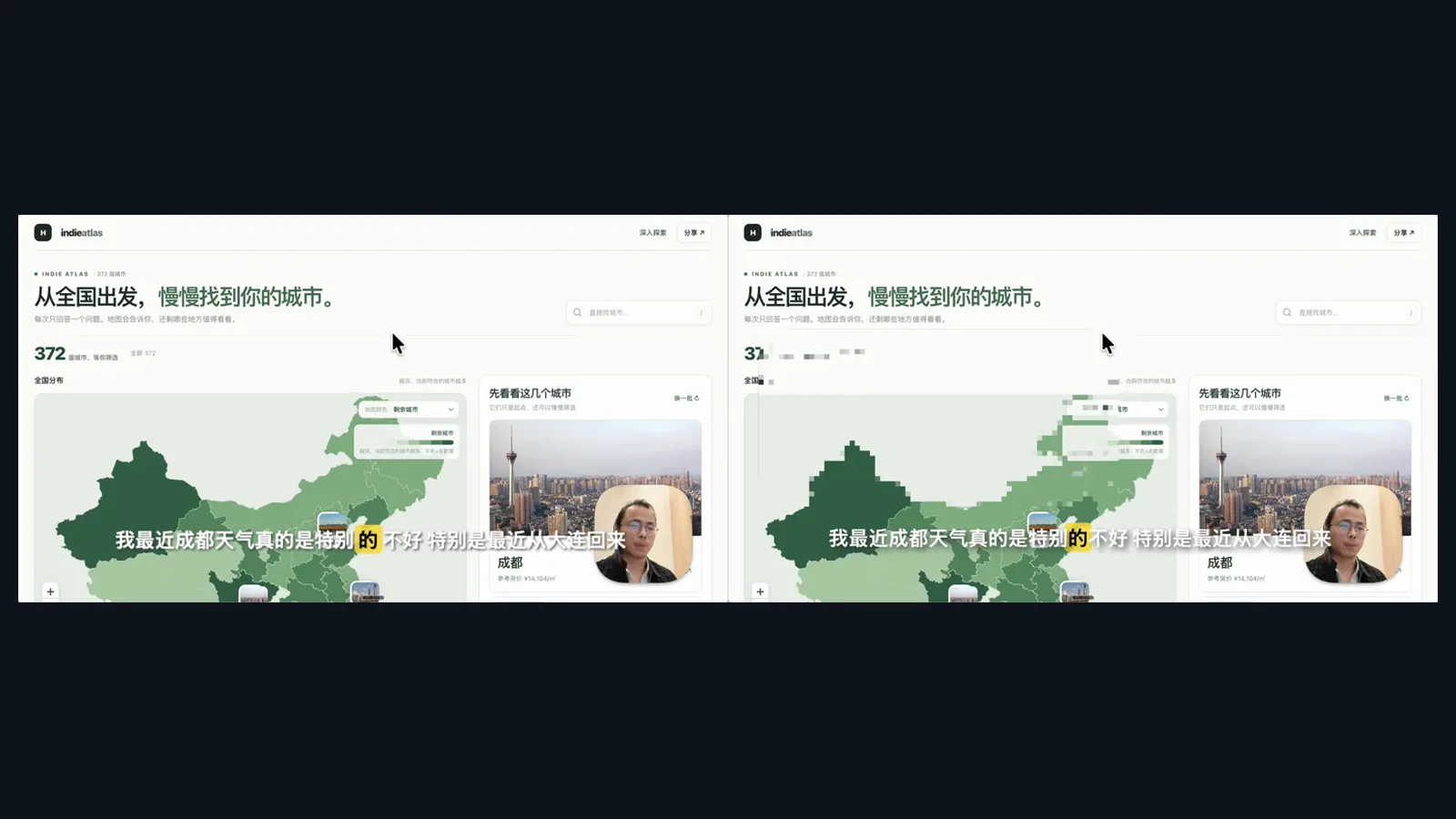
Global & Solid Redaction Masks in Mac Screen Recordings
Hide address bars, notification corners, or single lines of text in Mac screen recordings using global masks, pixelate, blur, or solid redaction in ScreenSage Pro.
Redacting a screen recording should never be guesswork. Whether you need to hide a browser address bar for the whole video or cover a single email line on a cropped recording, what looks covered in the editor has to stay covered in the final export.
ScreenSage Pro brings blur, pixelate, and solid redaction under one clear Redact section—with reliable global masks, true-to-pick solid colors, exact outline alignment, and smart corner rounding.
Hide fixed areas across the whole video with Global Masks
When part of your screen must stay hidden from start to finish—like a notification corner, bookmark bar, or browser URL—add a global mask once instead of stretching clips across the timeline. It renders consistently in both preview and export.
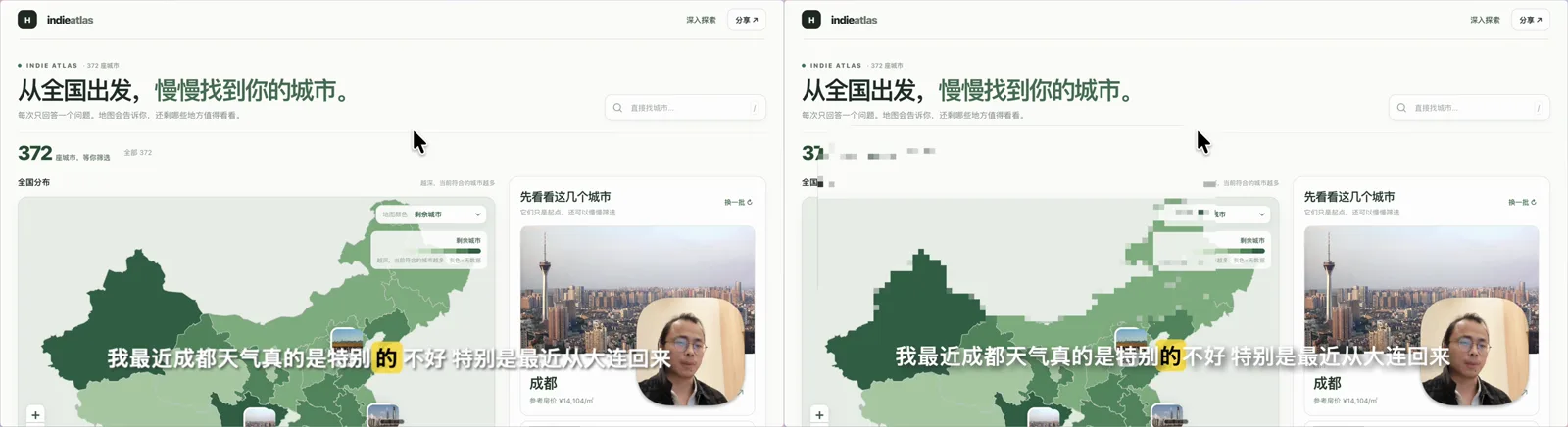
Blur, pixelate, and solid—all under Redact
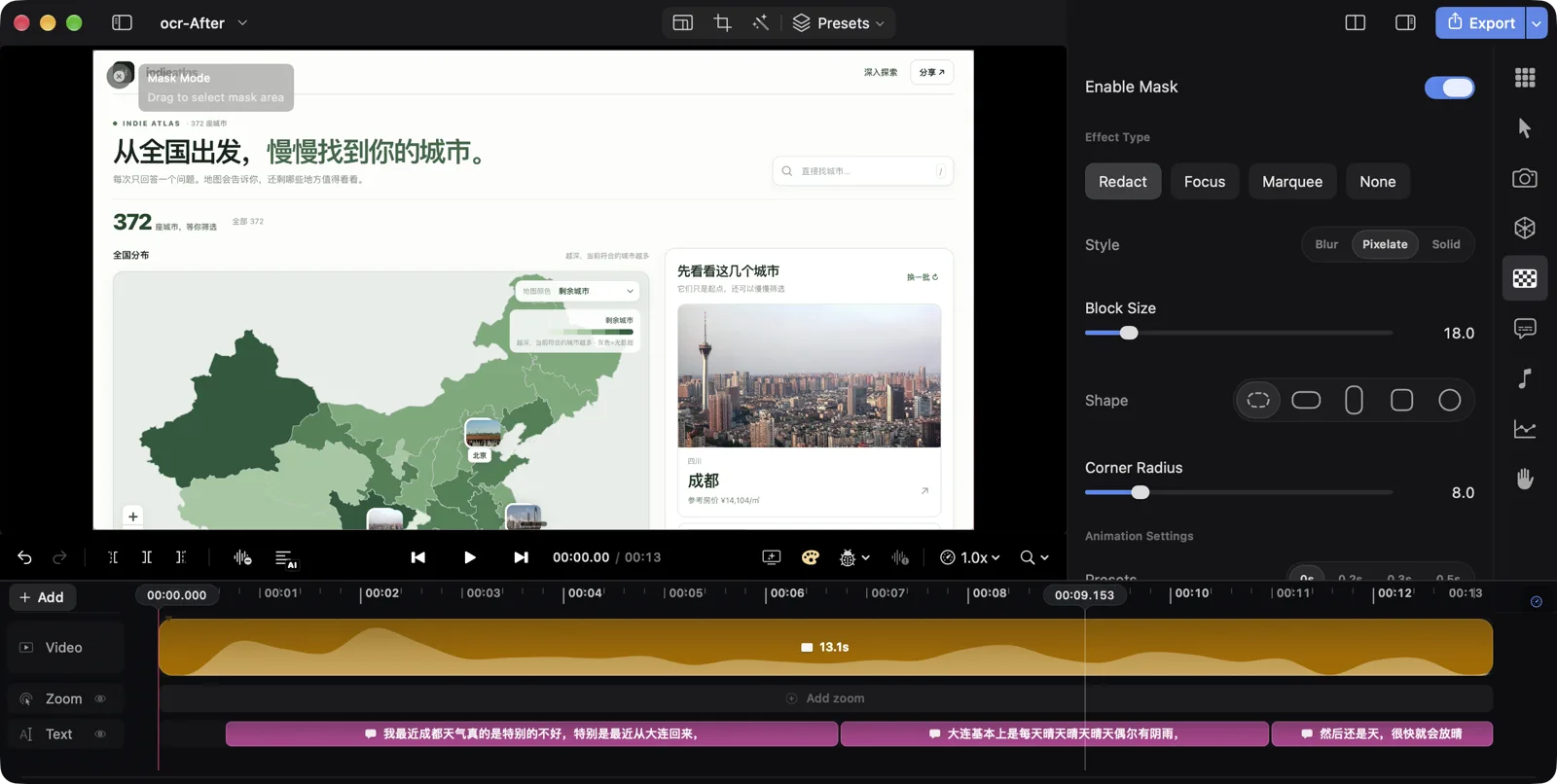
In the inspector, Effect Type is cleanly grouped into Redact, Focus, Marquee, and None. Choose Redact, then pick your Style:
- Blur: blends smoothly with surrounding UI while making details unreadable.
- Pixelate: sharp mosaic blocks ideal for IDs, numbers, and avatars.
- Solid: blocks out content completely in the exact color you select—no darkening or missing fills on export.
Pixel-accurate outlines and smarter corners
- Exact alignment, even on cropped clips: the dashed editing outline matches the final rendered mask pixel for pixel, so cropped recordings never shift the mask off target.
- Proportional corner radius: slim strips over a single line of text scale their corner radius sensibly so the first and last characters never peek out.
FAQ
Which redaction style is safest for API keys or short passwords? Use Solid or a heavy Pixelate block. Light blur can sometimes leave short, high-contrast strings guessable.
Should I still check the exported file? Yes—play through each redacted section, especially the first and last frames and any scrolling moments. See our full checklist in How to blur part of a video on Mac.
Related
- Full docs: Mask · Mask track
- Want automatic text scanning too? Read Auto-redact sensitive text in Mac screen recordings
- Download ScreenSage Pro
Auto zoom, cursor smoothing, text cursor follow, and fast export for Mac demos and tutorials.
Download ScreenSage Pro