Pin a Local Magnifier in Mac Screen Recordings
Magnify a button, number, or code block in Mac screen recordings without zooming the whole screen. Pin a fixed local magnifier in ScreenSage Pro.
Full-screen zoom isn't always the best way to highlight a detail—sometimes you want viewers to read one button, spreadsheet cell, or log line without losing sight of the rest of the interface. That's where a local magnifier shines: it enlarges a small lens area while keeping the surrounding screen still.
The catch with cursor-following lenses is that your pointer isn't always sitting on the thing you want people to watch:
- You click a control on the left while the result updates on the right.
- Your cursor wanders slightly as you talk, making a following lens wobble around.
- You want a title or code block magnified steadily for several seconds, no matter where your mouse goes.
With ScreenSage Pro's Fixed lens mode, you can pin the magnifier to one exact spot while your cursor moves freely.
Pin a local magnifier in 4 steps
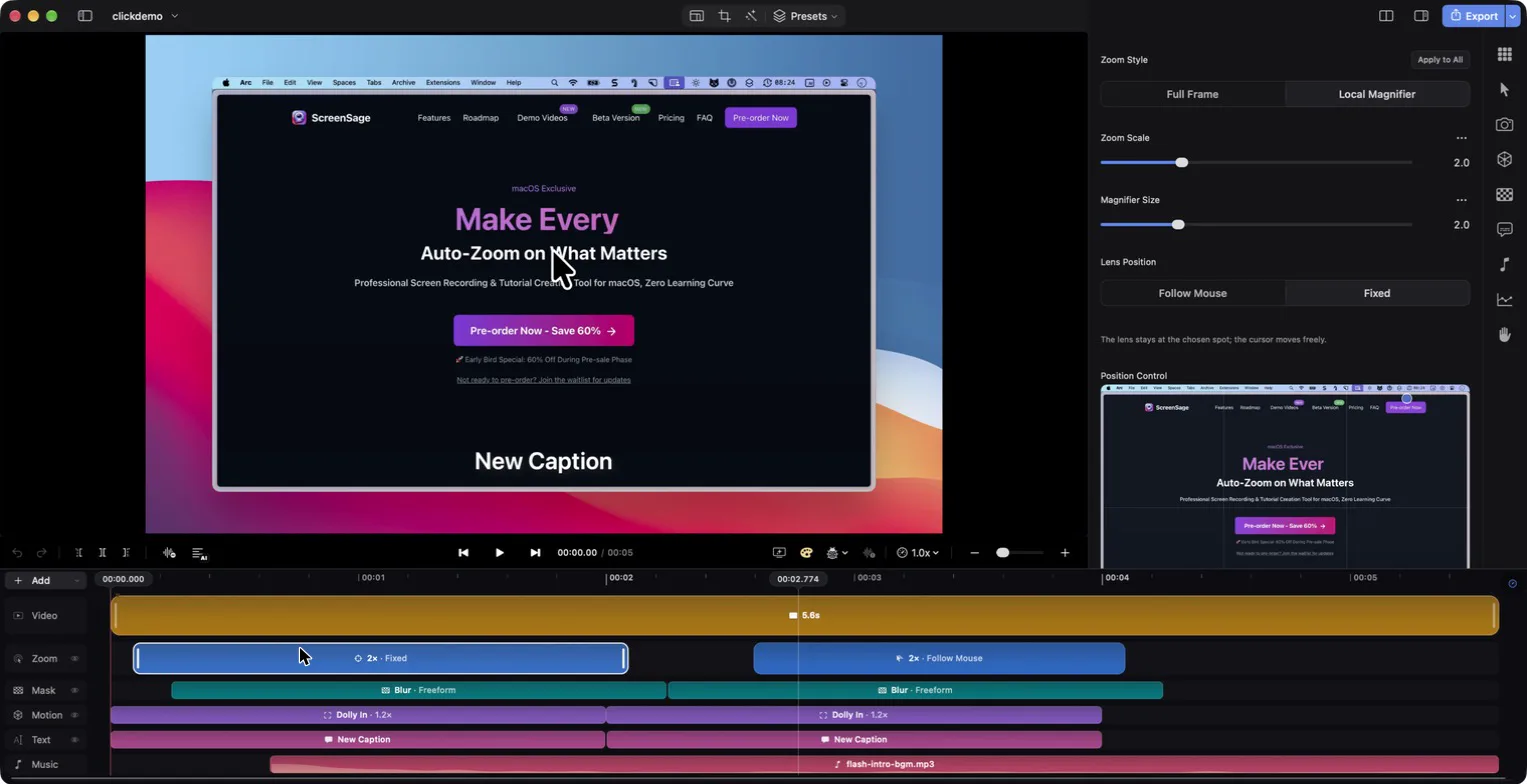
- Click Add on the timeline to insert a Local Magnifier (or select an existing zoom clip and switch Zoom Style to Local Magnifier).
- In the inspector, change Lens Position from Follow Mouse to Fixed.
- Drag the lens right on the preview—or in the Position Control thumbnail—onto whatever you want to highlight.
- Adjust Zoom Scale and Magnifier Size until the detail reads comfortably.
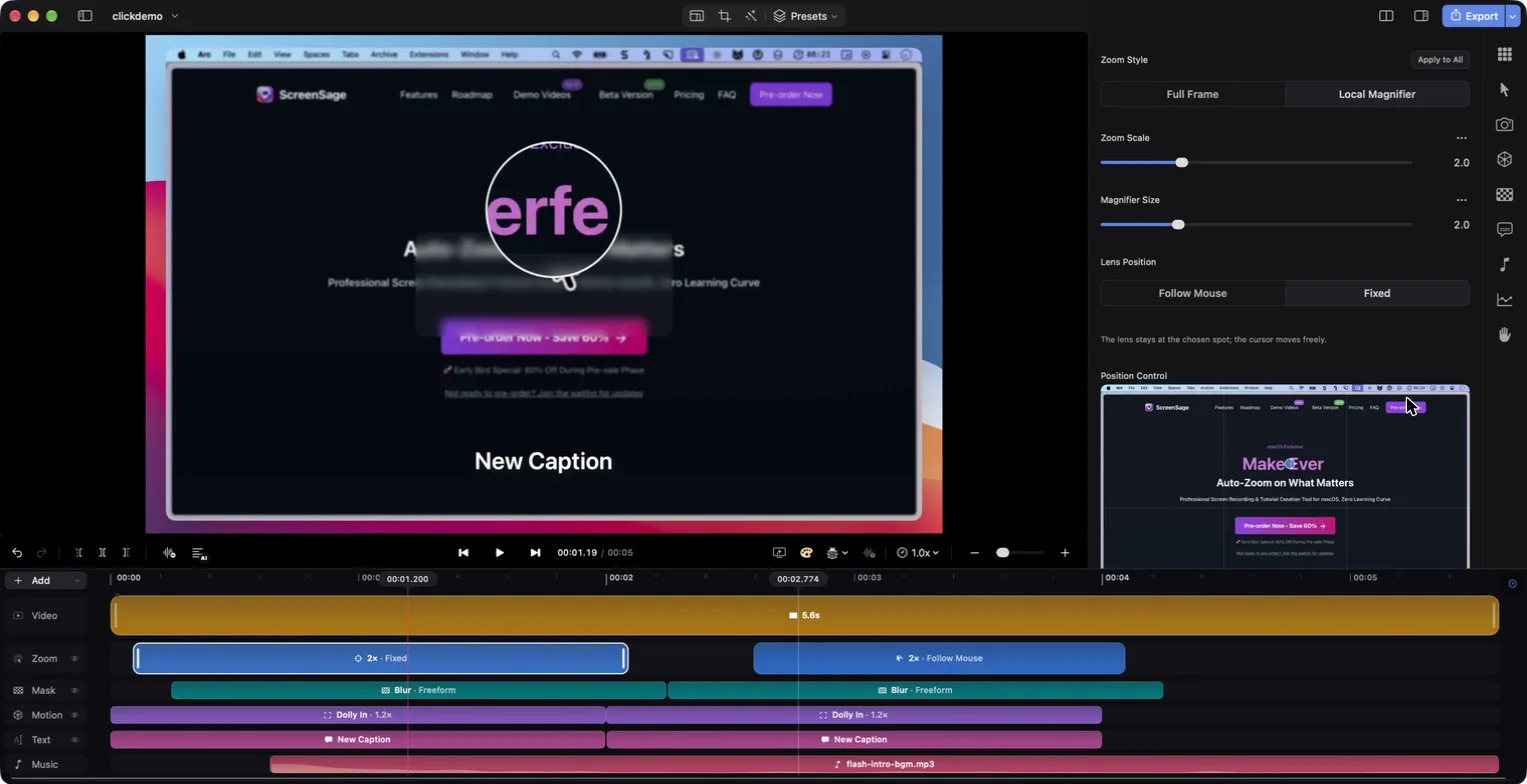
Even when your target sits near the edge of the screen, the circular lens automatically stays inside the video frame while still magnifying the exact spot you chose.
Fixed vs. Follow Mouse: which should you pick?
| Mode | Best for | Keep in mind |
|---|---|---|
| Follow Mouse | Guided walkthroughs where you point as you talk | Fast cursor movements can feel jumpy |
| Fixed | Calling attention to a number, output, title, or code block | If the target moves, split the clip and reposition the second half |
Here's the local magnifier in action (in Follow Mouse mode), enlarging one slice of a spreadsheet while the rest of the frame stays calm:
FAQ
Can I mix Fixed and Follow Mouse in the same video? Yes. Follow your mouse while demonstrating a workflow, then switch to a Fixed lens clip to hold steadily on the final output.
Will existing projects change automatically? No. Local magnifiers in existing projects stay on Follow Mouse unless you change them.
When should I use a local magnifier instead of auto zoom? Use auto zoom when viewers need to follow a wider menu or click path; use a local magnifier when you want to spotlight a tiny detail while keeping the full screen context visible.
Related
- Try the interactive demo on the 0.4 release page
- Full guide: Local magnifier docs
- Download ScreenSage Pro
Auto zoom, cursor smoothing, text cursor follow, and fast export for Mac demos and tutorials.
Download ScreenSage Pro