
Sharp 4K Captions & Steady Word-by-Word Highlights
Blurry 4K captions or jumping word-by-word subtitles in your Mac screen recordings? See how ScreenSage Pro renders razor-sharp 4K captions that stay rock-steady.
Auto captions and word-by-word highlights make screen recordings and tutorials far easier to follow. Because viewers read captions continuously, small rendering flaws stand out immediately on a sharp display:
- Blurry captions in 4K exports: text rendered small and scaled up looks soft next to crisp macOS UI.
- Jumping lines during word-by-word reveal: re-centering the line with every new word forces viewers' eyes to chase the text.
- Follow highlights pushing nearby words: an oversized highlight pill shoves neighboring words aside as it moves.
- Punctuation jitter: commas and periods subtly nudge the sentence sideways mid-line.
In ScreenSage Pro, we rebuilt caption rendering from the ground up to eliminate all four.
Native-resolution 4K caption rendering
Captions now draw directly at your export resolution—no upscaling, no fuzzy edges. Here's a 1:1 close-up from a 4K export comparing the old renderer (top) with the new one (bottom):
Rock-steady reveal and follow highlights
- Lines stay locked in place: the full sentence layout is settled before the first word appears, so each word simply reveals in position.
- Highlights hug the active word: word spacing never shifts as the highlight pill travels across the sentence.
- Zero punctuation wobble: commas, periods, and question marks stay completely still.
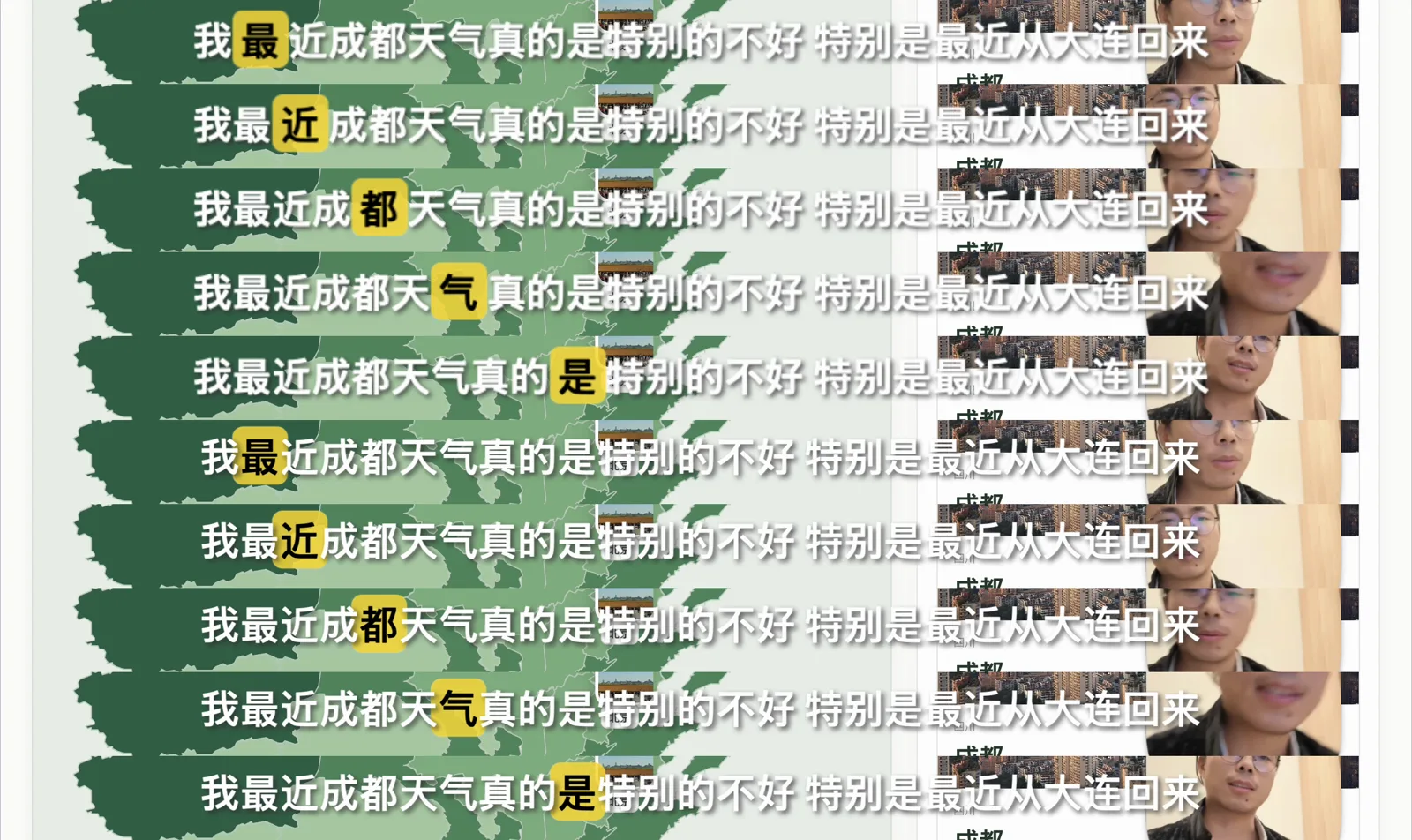
Here's the follow highlight in a real recording—transcribed, applied to the timeline, and tracking the narration cleanly word by word:
Add crisp word-by-word captions in 3 steps
- Open the captions panel in the inspector, choose a transcription model, and click Transcribe.
- Review or tweak any wording directly on the caption track.
- Choose a word-by-word reveal or follow-highlight style and export in 1080p or 4K.
FAQ
Do I need to recreate captions in older projects? No. Open any existing project in the latest ScreenSage Pro and re-export—your captions automatically upgrade to the sharper, steadier renderer.
Do I need to toggle a special 4K caption setting? No. Captions automatically match whatever resolution you choose when exporting.
Does word-by-word highlighting work on any caption style? Pick either word-by-word reveal or the follow-highlight preset in the captions panel, and customize fonts and colors to match your brand.
Related
- Full caption workflow: How to auto-caption a screen recording
- Docs: Smart captions
- Download ScreenSage Pro
Auto zoom, cursor smoothing, text cursor follow, and fast export for Mac demos and tutorials.
Download ScreenSage Pro