Auto Captions for Screen Recordings: A Better Mac Workflow
Need captions for a Mac screen recording? Generate them after the rough cut, correct product terms, protect important UI, and export the right format.
To add auto captions to a screen recording on Mac, finish the rough cut first, transcribe the correct audio track, correct names and technical terms, then check every caption against the interface it might cover. Export a styled video for viewers who watch with sound off, and keep an SRT or VTT file when the destination supports selectable captions.
The automatic part should remove typing, not judgment. Speech recognition can create timing and text quickly, but a product tutorial still needs a human to decide where a sentence breaks, which word deserves emphasis, and whether the caption hides the button being explained.
Why add captions to a screen recording?
Captions make spoken information available when a viewer cannot or does not want to hear the audio. The W3C describes captions as synchronized text for speech and important audio information, and notes that automatically generated captions often need editing.
That last point matters more in screen recordings than in many other videos. A transcription model may hear ordinary sentences correctly while still missing product names, keyboard shortcuts, code identifiers, acronyms, and menu labels. Meanwhile, the bottom-center placement that works for a talking head can cover the exact field or terminal output a tutorial is trying to show.
For a screen recording, good captions have three jobs:
- Preserve the meaning of the narration.
- Stay synchronized with the action on screen.
- Remain readable without blocking the interface.
When should you generate automatic captions?
Generate captions after the rough cut but before visual polish. If you transcribe before removing mistakes, long pauses, or repeated takes, every later cut creates caption cleanup. If you wait until the very end, you may discover that captions collide with zooms, cursor highlights, webcam layouts, or important controls.
A reliable order is:
- Record the screen, microphone, and any camera source.
- Remove false starts, long waits, and repeated actions.
- Confirm the narration track you want viewers to hear.
- Generate and correct captions.
- Add zooms, layout changes, and caption styling together.
- Watch the final export at its real delivery size.
This sequence reduces what we call caption debt: every structural edit made after transcription can force a second pass through timing, line breaks, and emphasis.
How do you auto-caption a screen recording in ScreenSage Pro?
ScreenSage Pro keeps transcription, caption correction, styling, and timeline context in the same project. You do not have to export the video, upload it to a separate caption service, then rebuild the timing in your editor.
1. Open Captions & Transcription
Finish the rough cut, then open Captions & Transcription from the editor toolbar. Select an installed Whisper or SenseVoice model, choose the spoken language, and select the composed audio track you actually want to transcribe.
Projects may contain microphone, system audio, camera audio, or a composed mix. Preview the track first. Transcribing the wrong source can produce duplicated speech, interface sounds mistaken for words, or captions that do not match the final mix.
2. Give the model useful context
When using Whisper, add a short prompt containing product names, people, acronyms, commands, or domain vocabulary that the model is likely to miss. For a coding tutorial, that might include a framework name, a package, a terminal command, and the filenames spoken in the lesson.
Do not paste the entire script into the prompt. A compact vocabulary list gives the model useful context while leaving the spoken audio as the source of truth. SenseVoice does not use this prompt field.
3. Transcribe, then review the timeline
Start transcription. ScreenSage Pro adds editable caption ranges to the caption track, where you can inspect timing against the video rather than treating the transcript as a detached document.
4. Correct captions in two passes
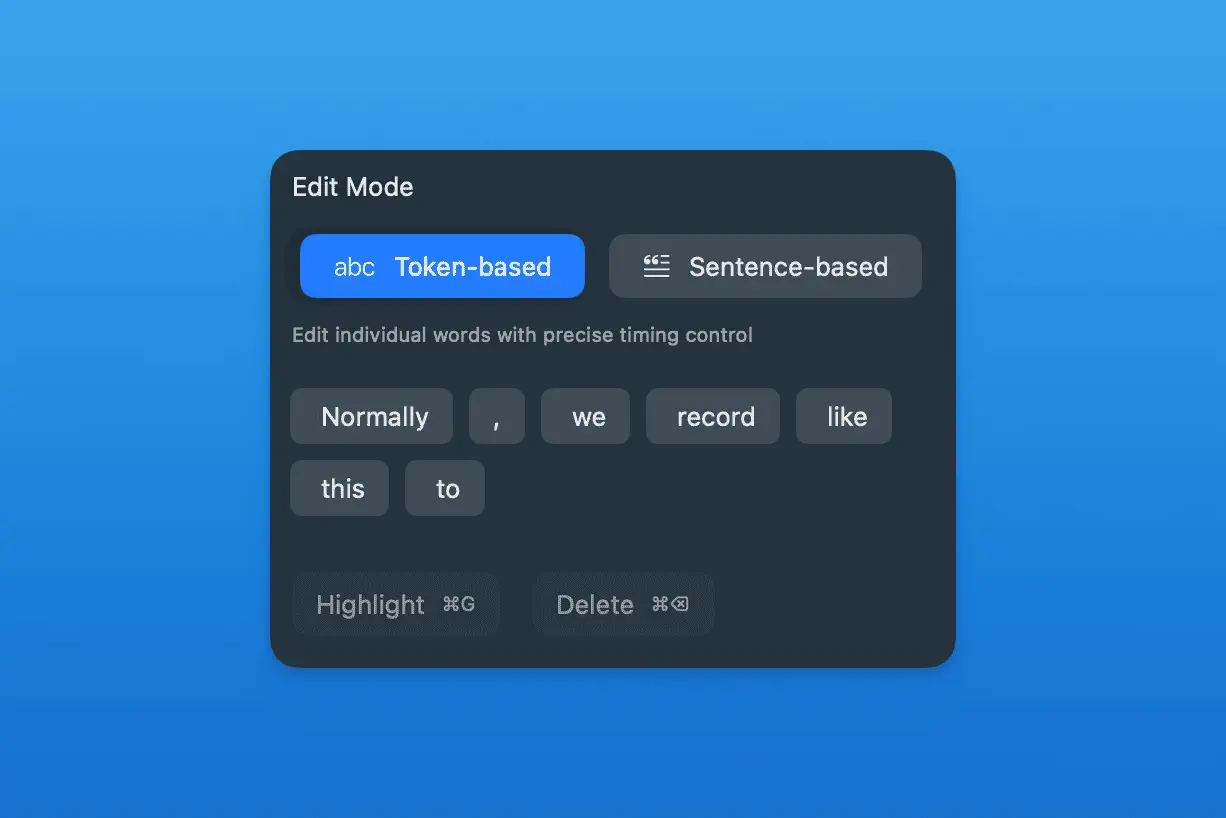
First use sentence editing to fix meaning, punctuation, and line breaks. Then use token editing for individual words, deletions, splits, or emphasis. Working from large decisions to small ones is faster than polishing each word before the sentence structure is stable.
Check these items deliberately:
- Product names, people, acronyms, and technical terms.
- Numbers, version names, URLs, file paths, and commands.
- Sentence breaks that arrive before or after the visible action.
- Missing non-speech information when it changes the meaning.
- Words that should be emphasized, not merely decorated.
Which caption style works best for software tutorials?
The best style is the one that stays readable while preserving the UI. Use a complete sentence when the viewer needs context; use follow, reveal, window, or focus behavior when the pacing benefits from highlighting the active words. Keep typography simple, contrast strong, and animation quieter than the product action.
The screen-specific rule is more important than the preset: a caption should never compete with the control being explained. If the action happens near the bottom of the frame, move the caption, adjust the crop, or use a restrained zoom. If a webcam overlay is already occupying a corner, treat captions and camera placement as one composition problem.
Review at the size people will actually watch. A line that looks spacious in a full editor window may become cramped on a small embedded player or phone.
Should you burn captions into the video or export SRT/VTT?
Use on-video captions when the words are part of the composition and must appear everywhere, including social feeds or players that may not enable caption tracks. Use SRT or VTT when the publishing platform supports selectable captions, multiple languages, accessibility controls, or later text corrections.
For durable delivery, keep both:
- A final video with the intended visual treatment.
- A reviewed SRT or VTT file as an editable text-and-timing source.
ScreenSage Pro can import existing SRT or VTT captions and export the current caption track in either format. The practical details are documented in the Smart Captions guide.
What should you check before publishing?
Watch the entire video once without editing. Pause only when something fails this checklist:
- Every spoken instruction needed to follow the video is represented.
- Names, commands, numbers, and UI labels match the screen.
- Captions arrive with the action rather than explaining it too early.
- No line covers a button, input, notification, or terminal result.
- Line breaks read naturally at the final player size.
- Styling remains consistent across scenes and layout changes.
- The exported video and SRT/VTT file reflect the same reviewed text.
Automatic captions are useful because they move your effort from transcription to correction. The finished result is still an editorial decision: what the viewer needs to read, when they need it, and where it can appear without hiding the lesson.
If your narrated recording also contains long pauses, make the rough cut first with the guide to automatically removing silent parts. For the full sequence from cuts through export, use the Mac screen-recording editing workflow. Then download ScreenSage Pro to keep recording, captioning, and visual polish in one project.
FAQ
Can macOS Live Captions add captions to an exported screen recording?
No. Live Captions on Mac provides real-time transcription for audio you are hearing, but it is not an editable caption track inside your video project. Use a video editor's caption workflow when you need reviewed timing, styling, and SRT/VTT delivery.
Should I auto-caption before or after editing?
Do it after the rough cut and before final visual polish. This avoids correcting captions for deleted takes while leaving enough time to resolve collisions with zooms, UI controls, and webcam layouts.
Do automatic captions need manual review?
Yes. Review names, technical terms, punctuation, timing, and line breaks. The W3C also notes that automatically generated captions often require editing.
Can ScreenSage Pro import and export subtitle files?
Yes. You can import SRT or VTT into the caption track and export reviewed captions in either format.
Auto zoom, cursor smoothing, text cursor follow, and fast export for Mac demos and tutorials.
Download ScreenSage Pro