Faster Timeline Editing: Draw Clips & Box-Select Captions
Edit Mac screen recordings faster: click a gap to drop a clip, drag to draw its length, Shift-click ranges, and box-select captions cleanly.
Even a short three-minute tutorial can pack dozens of captions and a dozen zooms onto the timeline. Two small timeline quirks used to slow that work down:
- Every new clip started at a fixed length, so placing a zoom always meant clicking once and then dragging both edges to fit.
- Box-selecting captions caused misclicks: dragging near the tracks often dropped a stray zoom instead of selecting captions.

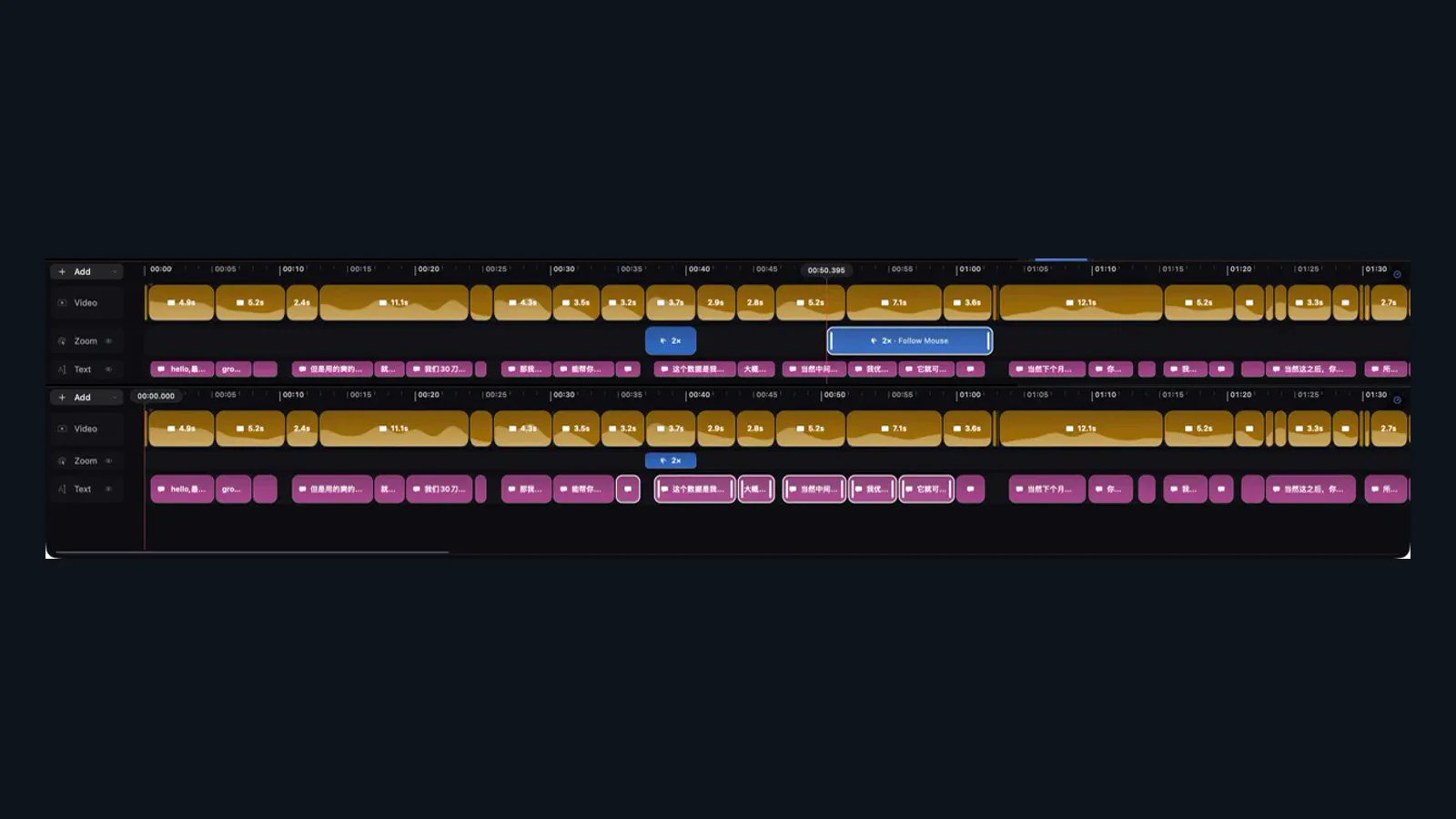
Now adding and selecting stay cleanly separated: drag inside a track to draw a clip, or drag from below the tracks to box-select.
Click to drop, or drag to draw the exact length
Hover over any open space on a track to see a translucent preview of where the clip will land:
- Click once to insert a clip at the default length.
- Click and drag sideways to draw a clip from start to finish in one motion. It snaps cleanly to the playhead and neighboring clips without overwriting them.


Two fast ways to multi-select clips and captions
1. Shift-click a continuous range
Click one caption, hold Shift, and click another on the same track to select everything in between—great for clearing a whole chunk of captions at once. Need to add individual clips outside that range? Just ⌘-click them.
2. Box-select from below the tracks
Press in the open space below all tracks and drag upward to draw a selection box—anything it touches gets selected. You can also hold Shift and drag directly on a track to box-select. Click the open space (or hit Esc) to clear your selection.


Quick speed tips
- Draw zooms as you watch: play your recording and drag across the exact seconds that need a close-up.
- Bulk-clean captions: box-select and press
Delete. - Clear selection anytime: press
Esc.
Related
- Try drawing and box-selecting in the interactive demo on the 0.4 release page
- Docs: Add to the timeline
- Download ScreenSage Pro
Auto zoom, cursor smoothing, text cursor follow, and fast export for Mac demos and tutorials.
Download ScreenSage Pro