Auto-Redact Sensitive Text in Mac Screen Recordings
Automatically hide emails, phone numbers, API keys, and Chinese UI text in Mac screen recordings with ScreenSage Pro's local privacy protection.
Few things ruin a freshly published demo faster than spotting private details you forgot to hide—an email address in an admin dashboard, a phone number on a billing page, or an API key flashing across your terminal. Drawing manual blur boxes frame by frame takes forever and is easy to get wrong.
ScreenSage Pro's Automatic privacy protection scans text across your Mac screen recording, flags patterns like emails, phone numbers, card numbers, IP addresses, and secret keys, and redacts them automatically. You can also click any specific word or label in the Detected text list to hide it on demand.
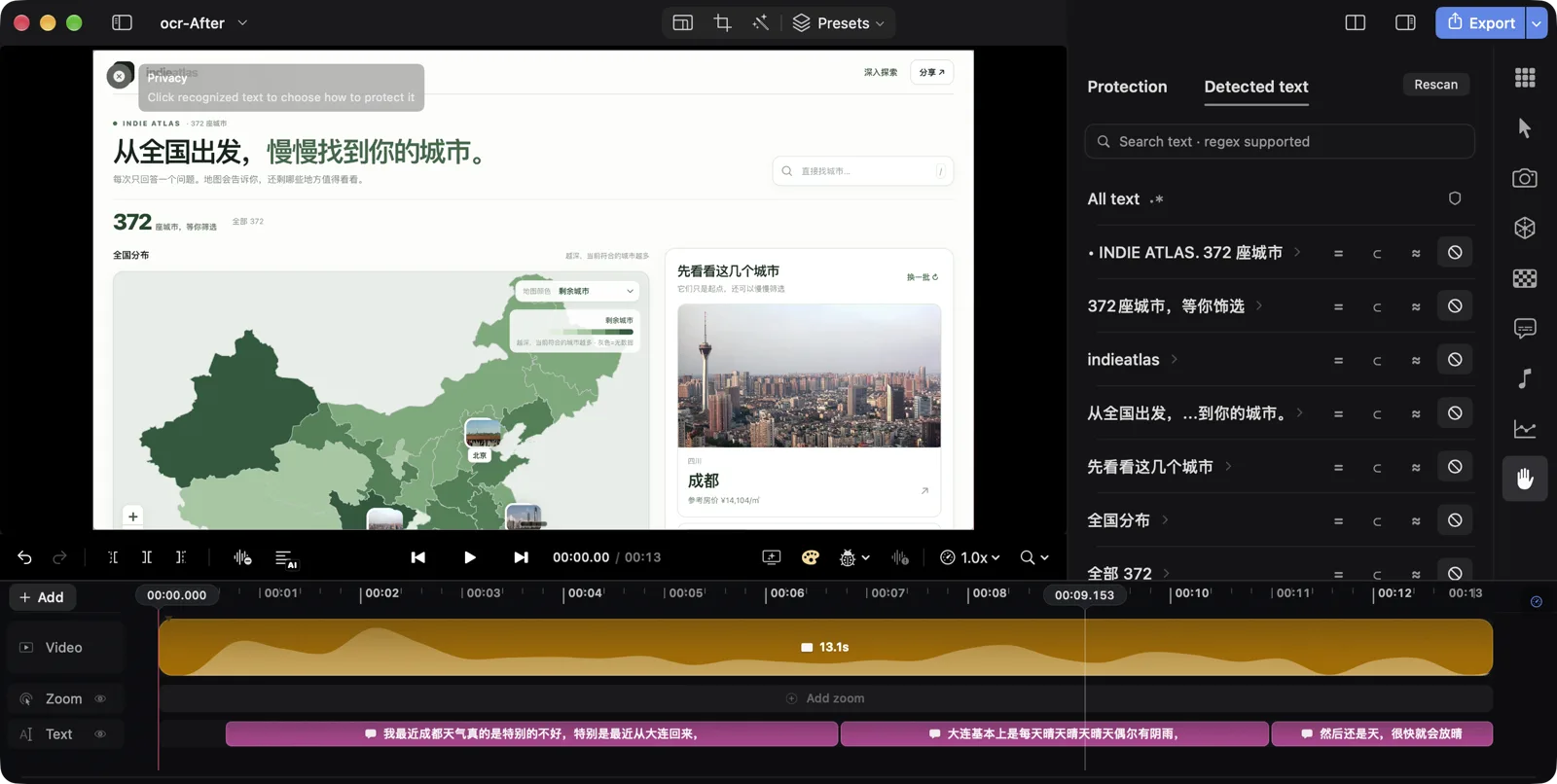
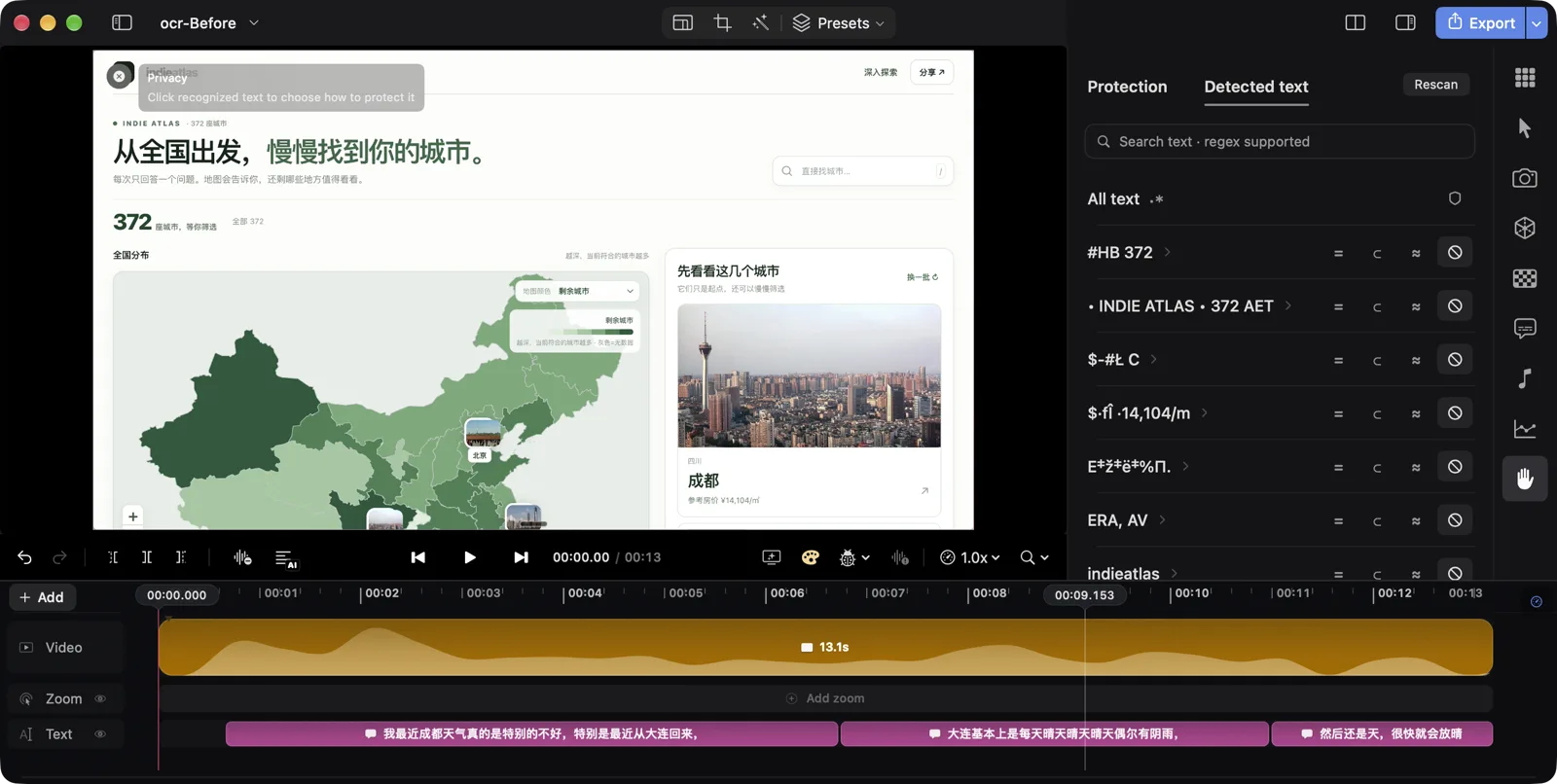
Accurate Chinese text recognition—no more garbled results
When recording Chinese apps or web pages on macOS, text recognition used to default to English only, turning Chinese UI text into unreadable gibberish so you couldn't selectively hide it.
Now, whenever Chinese is a preferred system language on your Mac, ScreenSage Pro automatically includes Chinese in text recognition. Here's the same Chinese web page recording before and after:
Live progress and automatic recovery on long scans
Scanning a longer recording takes a moment, so the scan workflow now keeps you in the loop instead of showing a mystery spinner:
- Clear step-by-step progress: see "Analyzing video changes (x / y)", "Recognizing text (x / y)", and "Refining protection regions…" so you know how long is left.
- Automatic retry on hiccups: if the macOS recognition engine stalls, ScreenSage Pro automatically resets the stuck state and retries once—resolving most glitches without interrupting you.
- Plain-English guidance: if a scan genuinely can't finish (for example, your Mac is nearly out of disk space), you get an actionable message telling you exactly how to fix it.
3 practical tips for safer screen recordings
- Make your rough cuts before scanning. Trimmed sections won't eat up scan time or add irrelevant results.
- Pair rules with manual picks. Let rules catch structured patterns like emails and keys, then click client names or project codenames in the Detected text list.
- Watch transitions once before publishing. Automation handles the heavy lifting, but scrolling pages, pop-up notifications, and window switches are always worth a quick final look.
Want a complete manual redaction checklist? Read How to blur part of a video on Mac.
FAQ
Does automatic privacy protection upload my video to the cloud? No. Text recognition runs locally on your Mac—your screen recordings stay on your device.
How do I hide client names or custom terms that don't match a rule? After scanning, find the term in the Detected text list and click to protect it, or add a manual mask on the mask track.
Should I still review the exported video? Yes. Do a quick watch-through around scrolling, pop-ups, and window changes to be 100% sure nothing slipped past a mask.
Related
- Compare before and after on the 0.4 release page
- Full guide: Automatic privacy protection docs
- Download ScreenSage Pro
Auto zoom, cursor smoothing, text cursor follow, and fast export for Mac demos and tutorials.
Download ScreenSage Pro