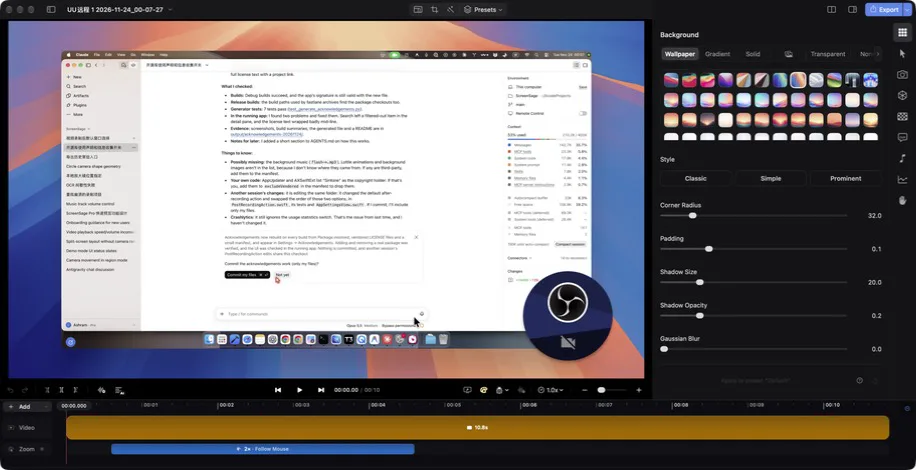
Open the Editor or Preview Card Right After Recording
ScreenSage Pro opens finished Mac recordings straight in the editor by default so you see auto zooms immediately—or switch back to the quick preview card anytime.
When you stop a Mac screen recording, what you want next depends on the job. For polished tutorials and product demos, jumping straight into the editor lets you inspect auto zooms, styling, and captions right away. For a quick 15-second clip to drop in Slack, a floating preview card is faster.
ScreenSage Pro supports both workflows—and lets you switch between them in two clicks.
Default: jump straight into the editor
By default, stopping a recording opens the full editor immediately, with your auto zooms, cursor effects, and background already applied. You can polish the timeline or hit ⌘E to export right away.
Prefer the floating preview card? Switch anytime
If you prefer quick "record, trim, and send" clips—or already chose the preview card previously (your existing choice is always respected)—you can switch back anytime:
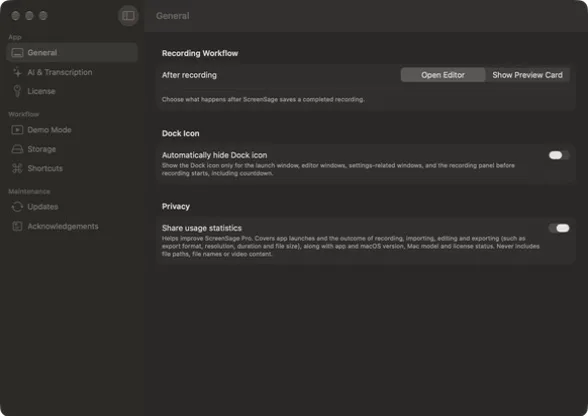
- Open Settings → General.
- Under Recording Workflow, find After recording.
- Pick Show Preview Card or Open Editor. The same toggle is right inside the recording panel's options menu.
Quick-preview recent projects, too
The preview card lets you play back, drag either end to trim, switch layouts, export, copy to clipboard, or jump into the editor.
You can also summon it for older projects: right-click any item under Recent Projects on the welcome screen and pick Show in Bottom-Right Quick Preview to review or export without opening the full editor.
Smoother recording details
Alongside the workflow update, external cameras (such as the Osmo Pocket) stay tightly in audio/video sync on longer takes, the picture-in-picture camera window stays draggable while selecting a capture area, and circular camera frames render as a true circle.
Related
- Full guide: After recording docs
- Explore the release: 0.4 release page
- Download ScreenSage Pro
Auto zoom, cursor smoothing, text cursor follow, and fast export for Mac demos and tutorials.
Download ScreenSage Pro